Hello!
Yesterday I was lucky enough to be part of an online / virtual meeting with other Hololens developers. One of them teach us the correct way to use packages in Unity. In fact, the example that he said (and I share here) is based on the way we must use HoloToolkit.
I have written some posts on HoloToolkit, I usually copy the HoloToolkit assets to the directory [Assets] in a Unity 3D project and it works. However there is a better way to do this, a much better way. So, I will describe the steps required in 3 samples scenarios working with HoloToolkit.
Create a HoloToolkit Unity Package
- Clone / download the latest version of HoloToolkit from GitHub
- Open Unity and select the option “Open project”
- Select the folder “HoloToolkit-Unity-master”
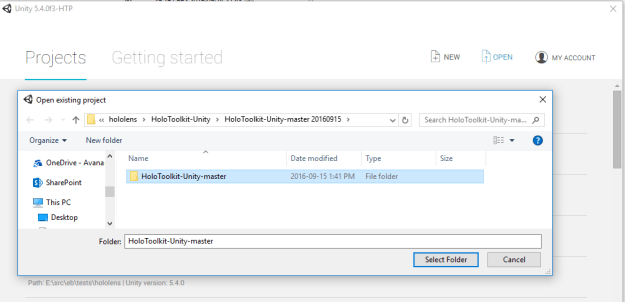
- Unity will create a new project and it will include the contents of HoloToolkit in the Assets
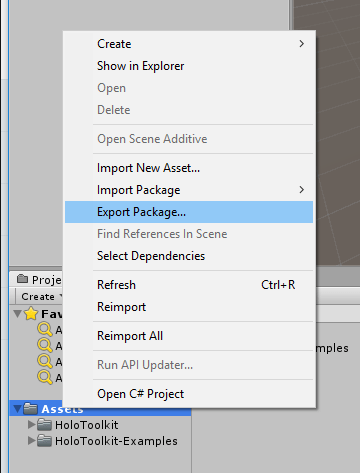
- In the Projects pane, select the Assets folder, display the shortcut menu and select the option [Export Package]
- Select the items to be exported. By default, it is advisable to leave all selected, but if you already have experience with these Assets you can create a custom package
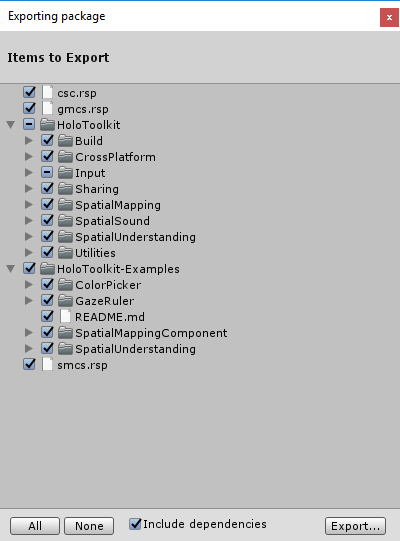
- Select the directory and destination and create the Unity Package
- Personally, I’d rather have a package for each set of big changes that exist in HoloToolkit, so that I add the suffix year, month and day to each package
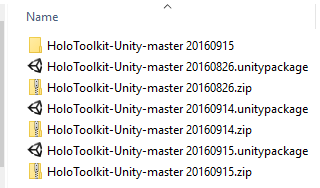
- Done !
Now you can close Unity and start to work with this package in a new Unity project
Use the HoloToolkit Unity Package in a Unity project
- Create a new 3D project in Unity
- Now we must import the HoloToolkit package. Select the menu [Assets / Import Package / Custom Package]
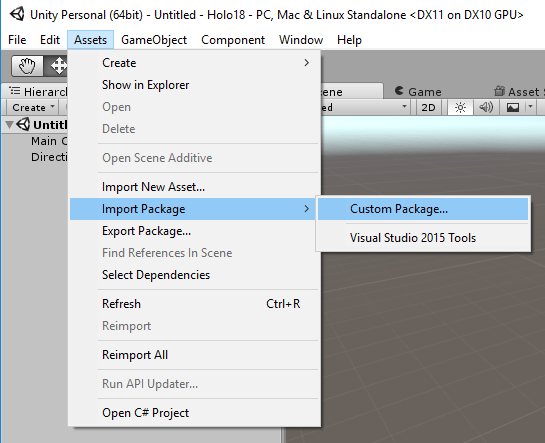
- This option will show us the elements of the Unity Package we want to import. For this sample, I will import one package a couple of weeks old to show the correct way of update a package later.
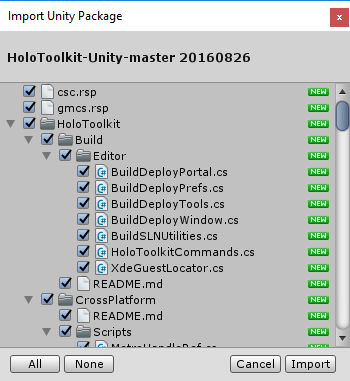
- At this time, Unity is responsible for importing all the elements (this is similar to copy all the files in the Assets directory)
- Once imported, you can see all the items in the Assets directory
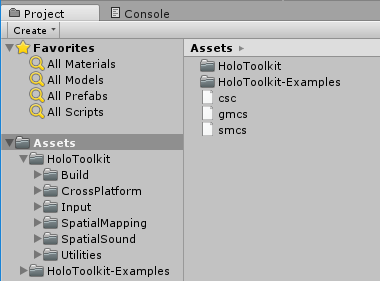
- We can now begin to work with the HoloToolkit assets in our Unity project
Update a HoloToolkit package in Unity
- In this scenario we will perform the same steps to import a package
- The important point here, is when there are changes in the package. We will we be warned when we are going to import the package
- For example in the picture below you can see changes in the file [Build / Editor / BuildDeployWindow.cs] and new files in [Imput / Plugins / … ]
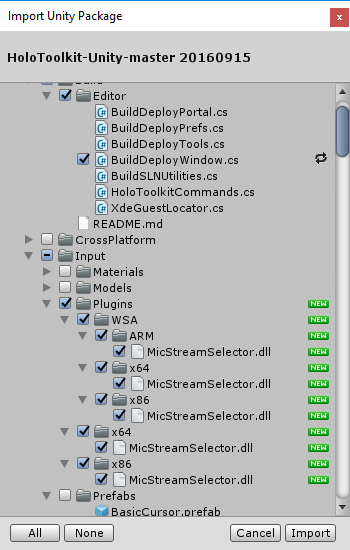
- This allows us to know the changes which exist between different versions of a package, and also to select the items that we want to use
And this is the correct way to work with Unity Packages applied to HoloToolkit.
Greetings @ Toronto
El Bruno
References
- GitHub, HoloToolkit
- GitHub, HoloToolkit Unity
 El Bruno
Leave a reply to #Hololens – Moviendo Hologramas #XBoxOne Controller – El Bruno Cancel reply