Hi !
Some time ago I wrote a post on how to create a 3D text and that is always visible for the user on an app for Hololens. For this example, I used a series of scripts from HolToolkit and a custom one to achieve movement and follow-up of the 3D text.
Every day I learn something new. And in the past days, I discover there are better ways to solve this scenario. And without using scripting.
This example is for Hololens I will begin with the usual steps for an app of Hololens in Unity3D
- Import HoloToolkit package
- Delete default assets: Main camera & Directional light
- Save Scene
- Adjust UWP projects settings to be Hololens capable
- Project Settings / Player
- Project Settings / Quality
- File / Build Settings
- Import HoloToolkit
- Add Assets
- Main Camera
- Spatial Mapping
- Cursor With Feedback
- Add an element of the type “UI / Text”
- Rename the item called “Canvas” as “HoloHUD”
- Rename the element named “Text” as “HoloHUDText”
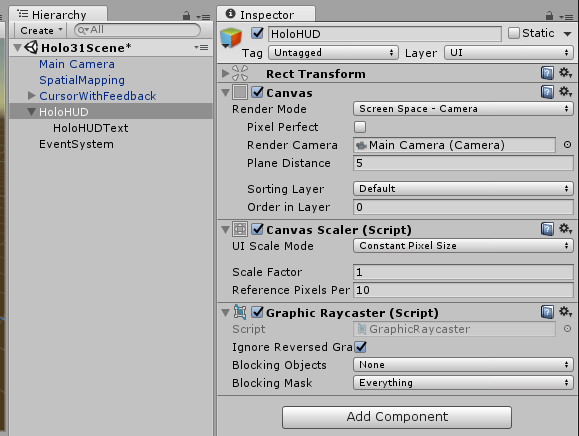
- Select the item HoloHUD and “Inspector” in the panel change the following values
- Canvas / Render Moder = Space Screen – Camera
- Canvas Scaler / Reference Pixels = 10
- At this time we need to assign a camera as a reference to HoloHUD. Select the “Main Camera” element from the Hierarchy pane and drag it to the Canvas property / Render Camera
- Change the following values
- Canvas / Plane Distance = 5
- At this time our project can be similar to the following image:
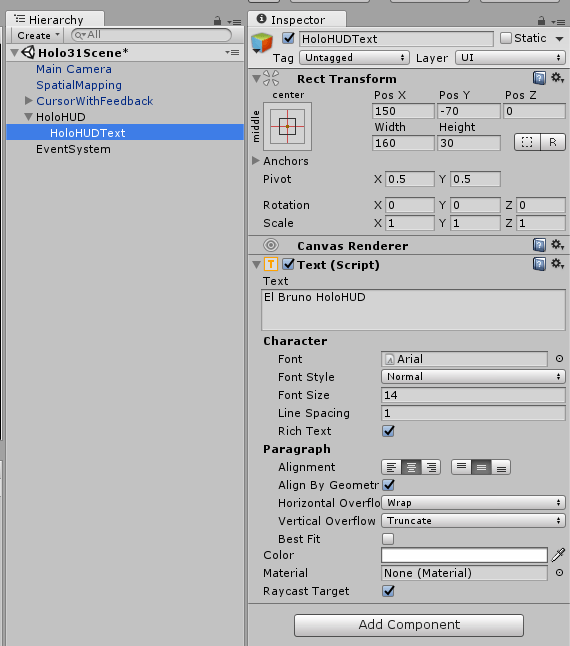
- Now it is time to change the values of the HoloHUDText element
- First position, changing values; POS X, Pos and & Pos Z
- The text to display; Text / Text
- And color, recommended white: Text / Color
- Create Empty and Rename > Managers
- Add Components
- Gaze Managers
- Gaze Stabilizer
- Gesture Managers
- Hands Manager
- Text Manager (script below)
- Add Components
How we have a fully functional Hololens HUD in the Unity3D app. I’ve also created a Prefab for this, and I’ve shared this in HoloAssets // GitHub (link), and you can check the complete source code here (link)

Greetings @ Toronto
El Bruno
References
- GitHub, HoloToolkit
- GitHub, HoloToolkit Unity
- El Bruno, How to Import the HoloToolkit Unity
- El Bruno, How to place a Hologram using AirTap and HoloToolkit
- El Bruno, Creating a menu with options with HoloToolkit
- El Bruno, Using voice commands to display a menu with HoloToolkit
- El Bruno, How to create a 3D text always visible using HoloToolkit
- Wikipedia, HUD Head-Up Display
 El Bruno
Leave a reply to #Hololens – How to improve the App deployment time from VS2017 to Hololens using USB – El Bruno Cancel reply