Hello!
Yesterday I wrote on how to connect an XBoxOne controller to a Hololens. Today I’ll share a bit of code on how to interact with the device. The example is simple
Once added the ability of Spatial Mapping in the project, we will activate the display of Visual Mesh when you press button A on the XBoxOne remote control
For example:
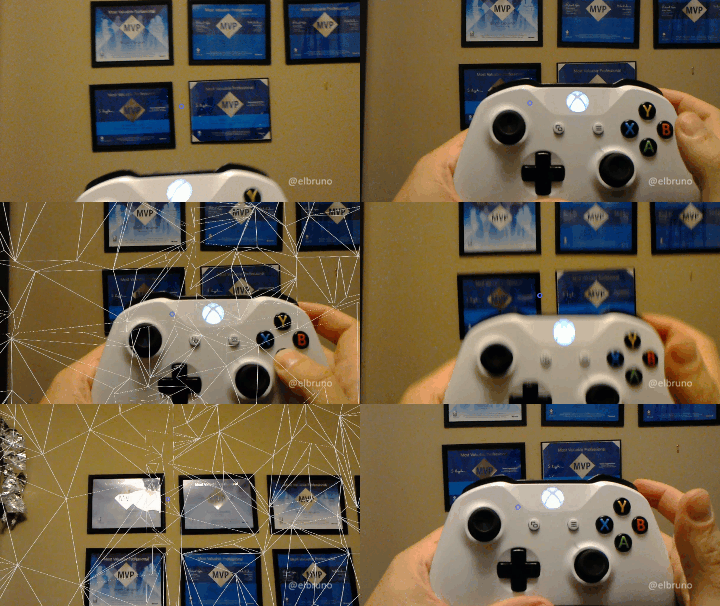
We started with the basics, creating a project vacuum in Unity3D and following these steps
- Configure project to support HoloLens projects
- Clean Scene elements
- Import HoloToolkit package
- Add
- HololensCamera
- SpatialMapping
- CursorWithFeedback
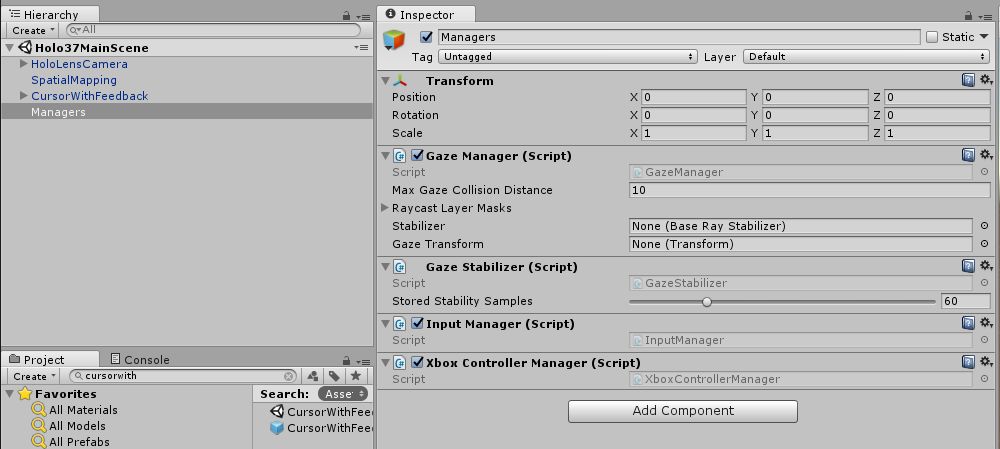
- Add Empty element, Managers
- Add existing scripts
- Gaze Managers
- Gaze Stabilizer
- Input Manager
- Add new empty script
- XboxControllerManager
- Add existing scripts
After completion of the project would be similar to the following:
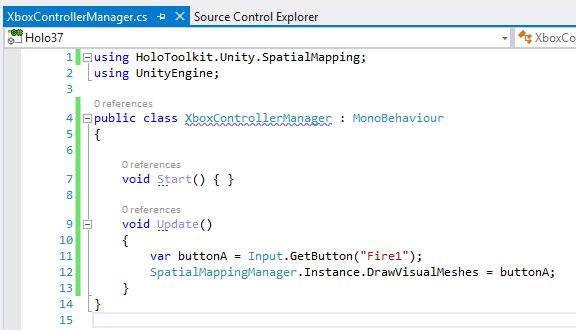
Now we see the code required for the “XboxControllerManager” script. We will work on the Update(): check for button A pressed state, and let’s add that state to the DrawVisualMeshes property of the active instance of Spatial Mapping.
Done! This is good enough for a sample, although here it is convenient to study a bit about concepts that handles Unity for the “Inputs” (see references). In this case, in the project properties, we can see the basic settings for projects 3D in Unity in this aspect. And the main class for the States of the buttons on the remote control to access is UnityEngine.Input.
In the next post, when working with a kind of HoloToolkit for control of Xbox, comment the changes needed to make it work properly.
The source of the example source code can be downloaded from link.
Greetings @ Toronto
El Bruno
References
- GitHub, HoloToolkit
- GitHub, HoloToolkit Unity
- El Bruno, How to Import the HoloToolkit Unity
- El Bruno, How to place a Hologram using AirTap and HoloToolkit
- El Bruno, Creating a menu with options with HoloToolkit
- El Bruno, Using voice commands to display a menu with HoloToolkit
- El Bruno, How to create a 3D text always visible using HoloToolkit
- El Bruno, How to create a HUD (3D text always visible without HoloToolkit)
- El Bruno, How to detect hands using HoloToolkit
- Unity, Input Manager
- Unity, Input Class Reference
 El Bruno
Leave a reply to #Hololens – How to select an hologram, change size or position and more using #MRDesignLab – El Bruno Cancel reply