Hi!
Yesterday I explained my own experience deploying and debugging Apps to Hololens from Visual Studio. IMHO using an USB cable to connect the device is 3X faster than the classic deploy and debug using WIFI.
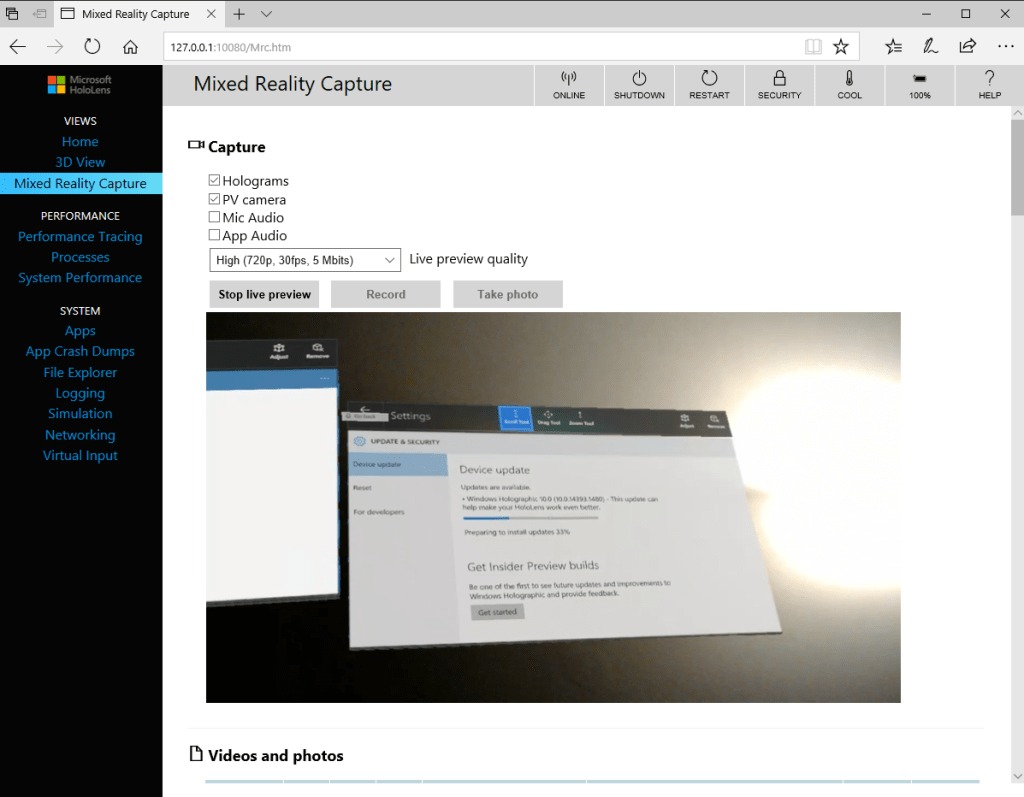
When we use the device connected via USB, we need to access to the Developer Portal in a “non standard way”. If we need to access to the Developer Portal, we need to navigate the following URL
1st step is authentication to access to the device features (future post on how to avoid this)
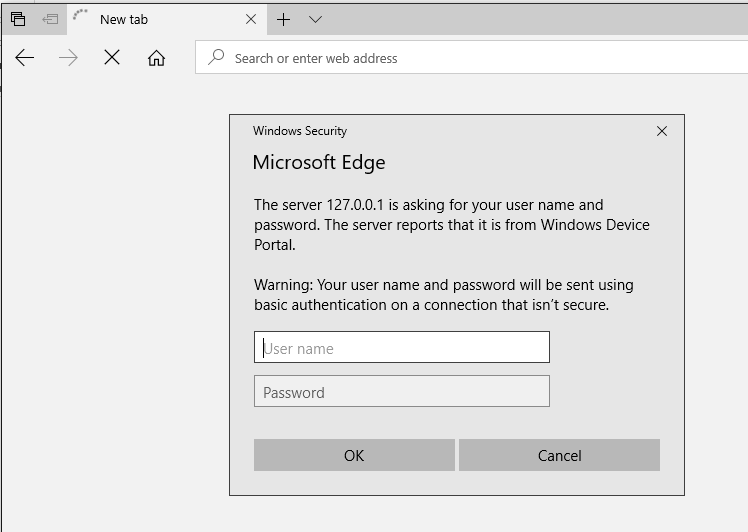
And that’s it! We now can access and use the Developer Portal as usual!

Greetings @ Toronto
El Bruno
Saludos @ Toronto
El Bruno
References
El Bruno, my posts
- Device Portal Basic Features for Developer
- How to Import the HoloToolkit Unity
- How to place a Hologram using AirTap and HoloToolkit
- Creating a menu with options with HoloToolkit
- Using voice commands to display a menu with HoloToolkit
- How to create a 3D text always visible using HoloToolkit
- How to create a HUD (3D text always visible without HoloToolkit)
- How to detect hands using HoloToolkit
- Windows 10, Xbox One Controller, Bluetooth and some lessons learned
- How to use Fire Buttons actions with an XBoxOne Controller
- HoloToolkit compiled packages for Unity3D in GitHub
- How to detect AirTap and Click actions using HoloToolkit
- Detect user hand interactions using #HoloToolkit
- Moving and rotating Holograms using an XBoxOne Controller
- Spatial Understanding vs Spatial Mapping, and a tutorial on how to use them
- Spatial Mapping, tutorial to search for simple surfaces, like a 1×1 tile on the floor
- Alternative to fix the Tap to Place and World Anchor issue, until the official release of HoloToolkit for Visual Studio 2017 and Unity3D 5.6
- How to save a #3D model of the environment around the device
- How to improve the App deployment time from Visual Studio 2017 to Hololens using an USB cable
 El Bruno
Leave a reply to #Hololens – Tutorial para mostrar botones e interacciones con lo nuevo de #MRDesignLab – El Bruno Cancel reply