Hi !
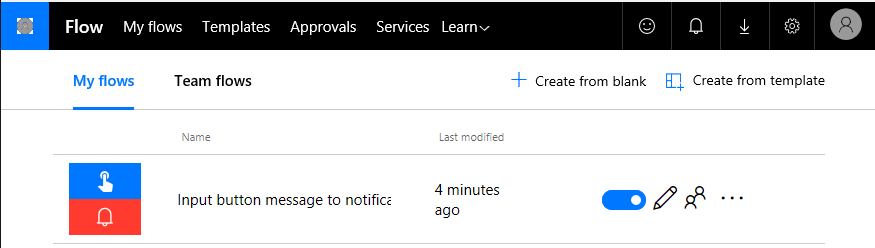
When we create a Flow to be triggered from a Button, the only way we used to have to test he Flow was triggering the Flow from the smartphone. Now we have the chance to trigger this type of flow directly from the Management Console of Flows. Let’s start with a Flow definition.
In the Flow details we can see the option “Run Now” in the Top Right menu.
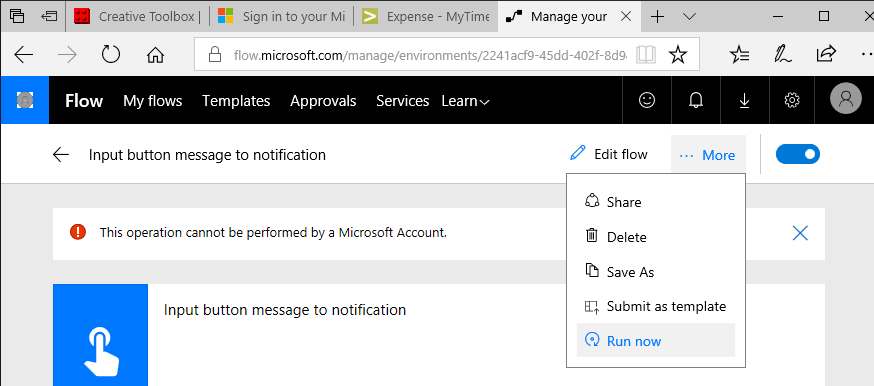
This option will trigger the Flow as it was triggered from a Smartphone. If we press the button, we will be required to allow the browser to use our location. This makes sense because location is one of the information shared from a Flow when its triggered from a Smartphone.

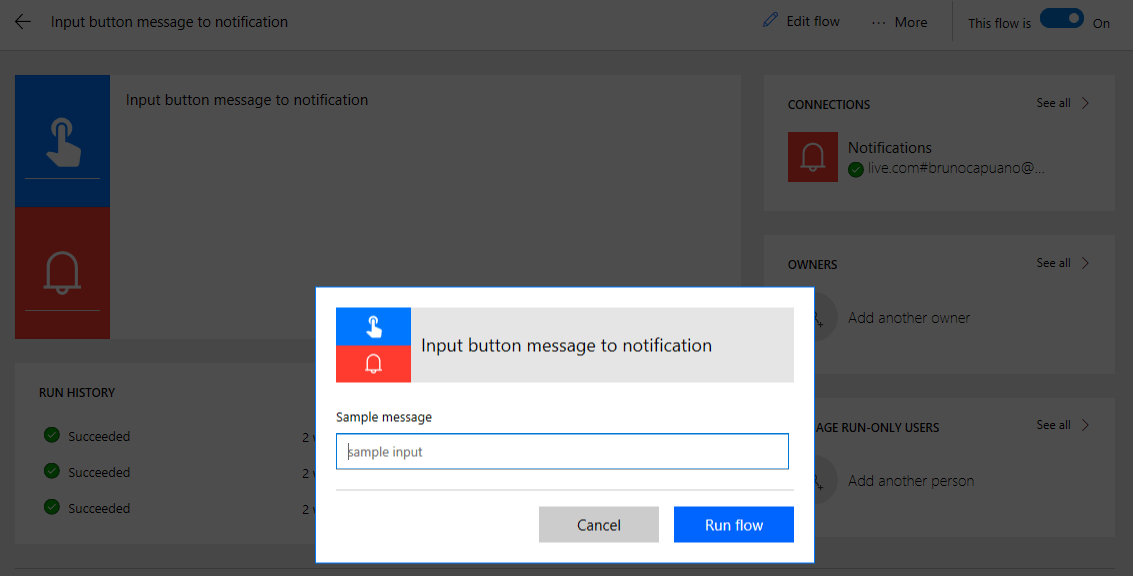
Next step will show the data entry form with the defined text fields for the Button.
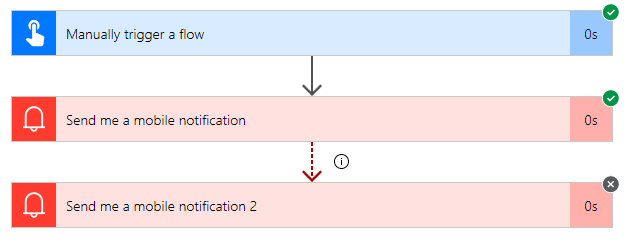
And we can see the step by step flow process.
If we expand the the Input section we can also see how the location was correctly defined from the browser information.

Happy Coding ! 😀
Greetings @ Toronto
El Bruno
References
- El Bruno
- How to invoke a Flow from an external app using HTTP Request
- How to review a Flow process
- Push Notification Support
- Calling a Flow from a C# ConsoleApp
- Support for Team coauthoring and sharing
- Email Sentiment Analysis on a PowerBI dashboard, and Flow
- Schedule a Flow execution, recurrence supported!
- How To iterate through collections of elements (Excel, Sharepoint, Cognitive Services and more…)
- “Save as ” and interaction with physical buttons FLIC and BTTN
- New action definition to use Computer Vision APIs from Microsoft Cognitive Services
- Buttons Widgets in iOS and Android
- Handle exceptions, errors, timeouts and more in a Microsoft Flow definition
- Working with Variables in Microsoft Flow
- Advanced options to work with an HTTP Action in Microsoft Flow, Headers, Authentication and more

 El Bruno
Leave a reply to fast proxy list Cancel reply