Hi !
Today I was talking about Microsoft flow, and I realized that I didn’t review the Microsoft Flow news during the past weeks. There some new cool integrations with Microsoft Planner and Microsoft teams, however the thing which caught my attention is that finally we have the ability to work with widgets in Android and iOS. These widgets allow us to see the Flow Buttons that we have created in our Flow account and launch them without having to open the App.
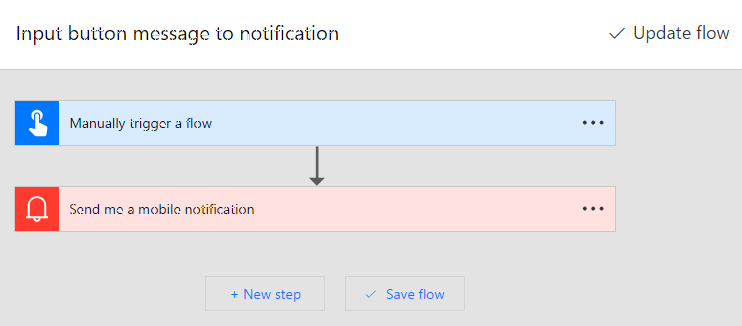
The product team published a post with tons of details for both platforms, however I had to try it. As part of the test, I wanted to see what happened with a button flow that requires an input text, when it was launched from a widget. Well my test Flow is quite simple.
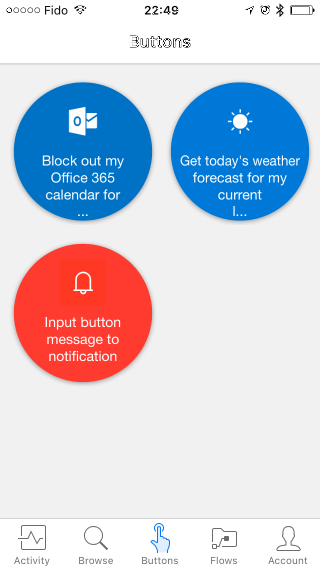
If we open the app we can see the button in our account
When we launch the flow we see that the input text is required

And almost instantly we have the notification on our smartphone.
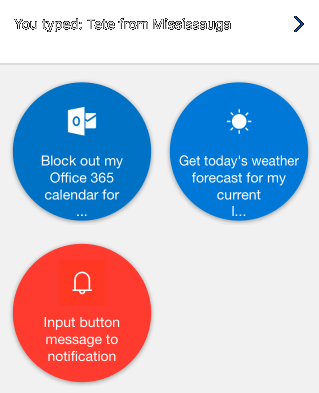
If we go to the widgets section on an iPhone, we can see that the buttons that we have defined in our Flow account, are available here. If we press the sample Flow button, we will see that the App is launched and that we have the possibility to enter the text for the flow.

Now if we have our phone locked, when launching a flow button will see that we have to unlock the same so that you can run the flow.

Useful feature 😀
Greetings @ Mississauga (-7!)
El Bruno
References
- Flow Blog, Widgets are now officially available for both Android and iOS
- El Bruno
- How to invoke a Flow from an external app using HTTP Request
- How to review a Flow process
- Push Notification Support
- Calling a Flow from a C# ConsoleApp
- Support for Team coauthoring and sharing
- Email Sentiment Analysis on a PowerBI dashboard, and Flow
- Schedule a Flow execution, recurrence supported!
- How To iterate through collections of elements (Excel, Sharepoint, Cognitive Services and more…)
- “Save as ” and interaction with physical buttons FLIC and BTTN
- New action definition to use Computer Vision APIs from Microsoft Cognitive Services


 El Bruno
Leave a reply to #Flow – Analyzing images in 3 steps with Microsoft Flow and Computer Vision #CognitiveServices – El Bruno Cancel reply