Hello!
A very common scenario when we work with Microsoft Flow is to work with collections of elements. These may be rows in Excel, Sharepoint lists, or other collections. Usually, in these scenarios, we tried to do is to work individually with each one of the items in the collection.
If we use an Excel as an example, we can see that we have the action “Get Rows”. This action opens an Excel file, reads a table and returns a pointer with the collection of rows in the Table. The next thing we have to do is select an action of type “Apply to Each” which will allow us to iterate through the elements of the collection.
In the next picture, we can see a couple of steps in a Flow definition. Start with open an Excel file, then select the output from the previous step named “Value”. “Value” represents each of the rows in Excel the table opened in the previous step.
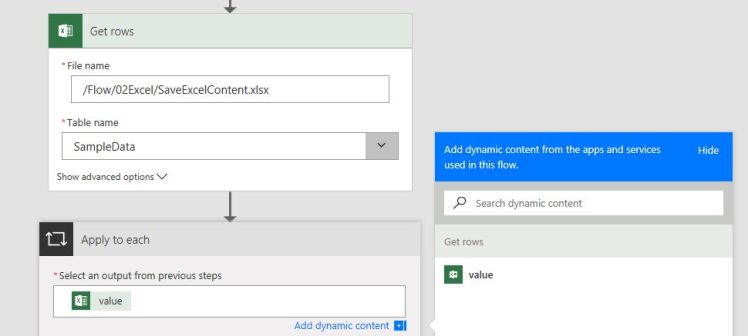
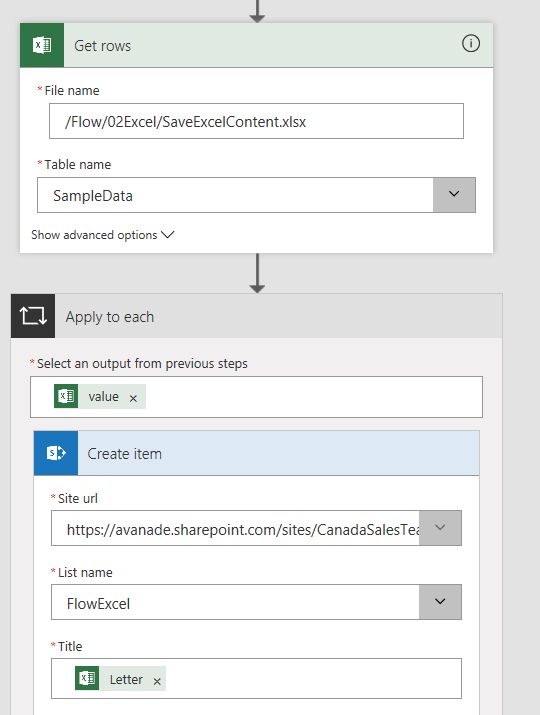
The next thing is to work with every “value”. For example, insert the contents of the Excel table into a Sharepoint list.
Note: Here we miss functionality as the of AutoMapper (link), which in the case of entities in the .net saves us a lot of work.
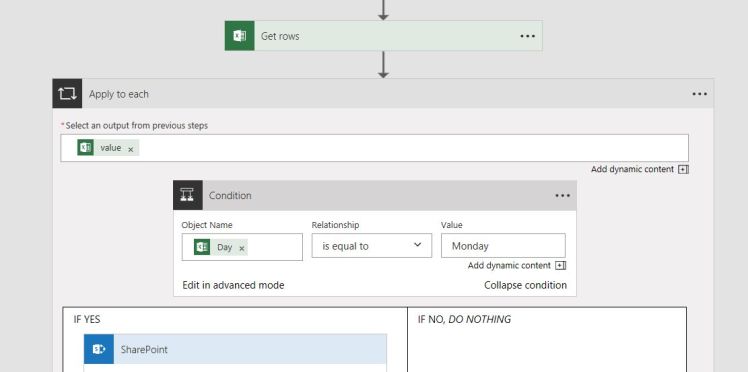
We can think of a different scenario, where we need to conduct any assessment for each row in Excel, for example, single recording rows that match a value “Monday” for the day at Excel column in Sharepoint.
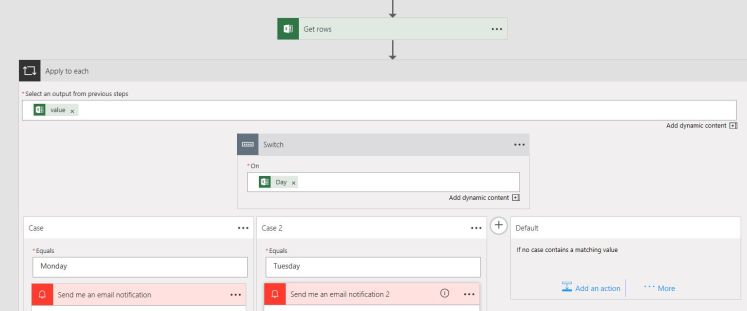
And, if an IF not enough also you can test your monitor resolution with a fantastic graphic SWITCH!
Greetings @ Toronto
El Bruno
References
- Microsoft Flow
- El Bruno


 El Bruno
Leave a reply to #LogicApps – Trabajando con Visual Studio 2017 y LogicApps #VS2017 – El Bruno Cancel reply