Windows 10 and YOLOV2 for Object Detection Series
- Introduction to YoloV2 for object detection
- Create a basic Windows10 App and use YoloV2 in the camera for object detection
- Transform YoloV2 output analysis to C# classes and display them in frames
- Resize YoloV2 output to support multiple formats and process and display frames per second
Hi!
Today I start with the final UWP App running because much of the post will be code and more code. The expected output in a Windows 10 object recognition App with YoloV2 is similar to the following image

Following in the footsteps of my previous post, we were with the result of the process of our Webcam With YoloV2 and that is an array of 21125 Numbers Float. Well, this number is not trivial, as rereading the documentation of YOLOV2 we see that YOLO divides the image into a 13-by 13-cell grid:

Each of these Cells It is responsible for predicting 5 bounding boxes. A bounding box describes the rectangle that contains an object. and from here The number
13 * 13 * 125 = 21125
There are many posts that describe how Yolo works internally, I left some in the references if someone is interested in the details.
Well, in this scenario the next step was to start translating that Grid[21125] in C# objects to work with. As the internet is a very broad source of knowledge, instead of translating some of the Python classes that already exist, I saw that Rene Schulte It had between its GitHub repositories a Fork From another repo where you could see the following classes
- YoloWinMLParser.cs
- This class is a parser to convert the Grid In a collection of Frames with the size and location coordinates of the objects detected in the image.
- YoloBoundingBox.cs
- This class represents a Frame of detected object.
To show these frames, we add a Canvas About the control that shows the Feed of the camera.
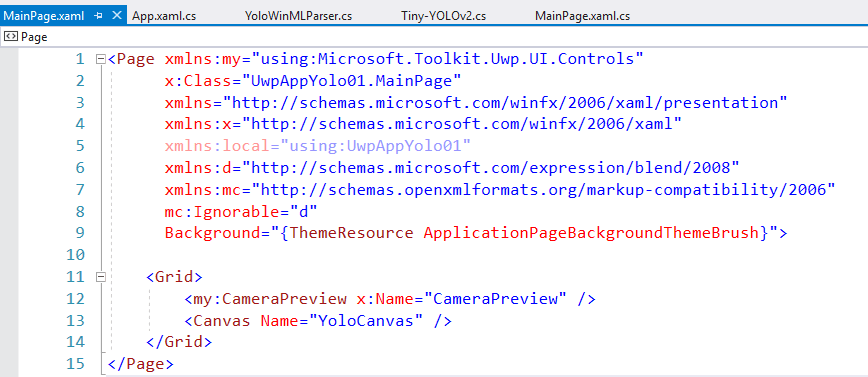
The following code completes the example, with the following considerations
- There are a number of private variables to work with the model, the collection of frames and the visual styles with which they are painted.
- The frames of people are painted in green, the other objects in yellow
This file contains hidden or bidirectional Unicode text that may be interpreted or compiled differently than what appears below. To review, open the file in an editor that reveals hidden Unicode characters.
Learn more about bidirectional Unicode characters
| using System; | |
| using System.Collections.Generic; | |
| using Windows.Media; | |
| using Windows.UI.Core; | |
| using Windows.UI.Text; | |
| using Windows.UI.Xaml; | |
| using Windows.UI.Xaml.Controls; | |
| using Windows.UI.Xaml.Media; | |
| using Windows.UI.Xaml.Navigation; | |
| using UwpAppYolo01.Yolo9000; | |
| namespace UwpAppYolo01 | |
| { | |
| public sealed partial class MainPage : Page | |
| { | |
| private TinyYoloV2Model _model; | |
| private IList<YoloBoundingBox> _boxes = new List<YoloBoundingBox>(); | |
| private readonly YoloWinMlParser _parser = new YoloWinMlParser(); | |
| private readonly SolidColorBrush _lineBrushYellow = new SolidColorBrush(Windows.UI.Colors.Yellow); | |
| private readonly SolidColorBrush _lineBrushGreen = new SolidColorBrush(Windows.UI.Colors.Green); | |
| private readonly SolidColorBrush _fillBrush = new SolidColorBrush(Windows.UI.Colors.Transparent); | |
| private readonly double _lineThickness = 2.0; | |
| public MainPage() | |
| { | |
| InitializeComponent(); | |
| } | |
| protected override async void OnNavigatedTo(NavigationEventArgs e) | |
| { | |
| LoadYoloOnnxModel(); | |
| await CameraPreview.StartAsync(); | |
| CameraPreview.CameraHelper.FrameArrived += CameraHelper_FrameArrived; | |
| } | |
| private async void LoadYoloOnnxModel() | |
| { | |
| var file = await Windows.Storage.StorageFile.GetFileFromApplicationUriAsync(new Uri("ms-appx:///Tiny-YOLOv2.onnx")); | |
| _model = await TinyYoloV2Model.CreateTinyYoloV2Model(file); //, | |
| } | |
| private async void CameraHelper_FrameArrived(object sender, Microsoft.Toolkit.Uwp.Helpers.FrameEventArgs e) | |
| { | |
| if (e?.VideoFrame?.SoftwareBitmap == null) return; | |
| await Dispatcher.RunAsync(CoreDispatcherPriority.Normal, async () => | |
| { | |
| var input = new TinyYoloV2ModelInput { Image = e.VideoFrame }; | |
| var output = await _model.EvaluateAsync(input); | |
| _boxes = _parser.ParseOutputs(output.Grid.ToArray()); | |
| DrawOverlays(e.VideoFrame); | |
| }); | |
| } | |
| private void DrawOverlays(VideoFrame inputImage) | |
| { | |
| YoloCanvas.Children.Clear(); | |
| if (_boxes.Count <= 0) return; | |
| var filteredBoxes = _parser.NonMaxSuppress(_boxes, 5, .5F); | |
| foreach (var box in filteredBoxes) | |
| DrawYoloBoundingBox(box, YoloCanvas); | |
| } | |
| private void DrawYoloBoundingBox(YoloBoundingBox box, Canvas overlayCanvas) | |
| { | |
| var x = (uint)Math.Max(box.X, 0); | |
| var y = (uint)Math.Max(box.Y, 0); | |
| var w = (uint)Math.Min(overlayCanvas.ActualWidth – x, box.Width); | |
| var h = (uint)Math.Min(overlayCanvas.ActualHeight – y, box.Height); | |
| var rectStroke = box.Label == "person" ? _lineBrushGreen : _lineBrushYellow; | |
| var r = new Windows.UI.Xaml.Shapes.Rectangle | |
| { | |
| Tag = box, | |
| Width = w, | |
| Height = h, | |
| Fill = _fillBrush, | |
| Stroke = rectStroke, | |
| StrokeThickness = _lineThickness, | |
| Margin = new Thickness(x, y, 0, 0) | |
| }; | |
| var tb = new TextBlock | |
| { | |
| Margin = new Thickness(x + 4, y + 4, 0, 0), | |
| Text = $"{box.Label} ({Math.Round(box.Confidence, 4)})", | |
| FontWeight = FontWeights.Bold, | |
| Width = 126, | |
| Height = 21, | |
| HorizontalTextAlignment = TextAlignment.Center | |
| }; | |
| var textBack = new Windows.UI.Xaml.Shapes.Rectangle | |
| { | |
| Width = 134, | |
| Height = 29, | |
| Fill = rectStroke, | |
| Margin = new Thickness(x, y, 0, 0) | |
| }; | |
| overlayCanvas.Children.Add(textBack); | |
| overlayCanvas.Children.Add(tb); | |
| overlayCanvas.Children.Add(r); | |
| } | |
| } | |
| } |
The only detail that remains to comment is that YoloV2 is designed to work with images of size 416 x 416. In this case you have to resize the control of Webcam and the Canvas To that Size So that the frames are displayed in the correct position.
In the next post I will share the final example, and also add some work of Rescaling To be able to support other definitions different from 416 x 416.
Happy Coding!
Greetings @ Toronto
El Bruno
References
- YOLO: Real-time object detection
- YOLO9000: Better, Faster, Stronger by Joseph Redmon and Ali Farhadi (2016)
- ONNX Tools
- Azure AI Gallery, Tiny YOLO V2
- El Bruno, Windows Community Toolkit V 3.0 makes life incredibly easy if you need working with the camera in a UWP App
- Visual Studio Marketplace, Visual Studio Tools for AI
- Real-time object detection with YOLO
- Rene Schulte GitHub
- Sevans4067 WinML-TinyYolo


 El Bruno
Leave a reply to #WinML – How to create a #Windows10 App using #YOLO for object detection (1 of 4) – El Bruno Cancel reply