Hi !
So, my CustomVision.ai image is build and running in a container in my Raspberry Pi 3. It’s time to see if I can use it from other devices in the same network. When I run my image I defined IP and Port, but if you want to know these information, the following command is very useful
sudo docker port <CONTAINER ID>

So, my container is listening at 127.0.0.1 in port 80. That’s cool for local processing, however I want to access my container from other devices in the same network. In order to do this, I’ll run my image with the following command (I’m not defining the IP, just the port 80)
sudo docker run -p 80:80 -d <IMAGE ID>

The container is using the port 80, and docker is taking over this port in my device. My Raspberry PI device IP is [192.168.1.58], so I can go back and make some tests using Postman to analyze images in the device.
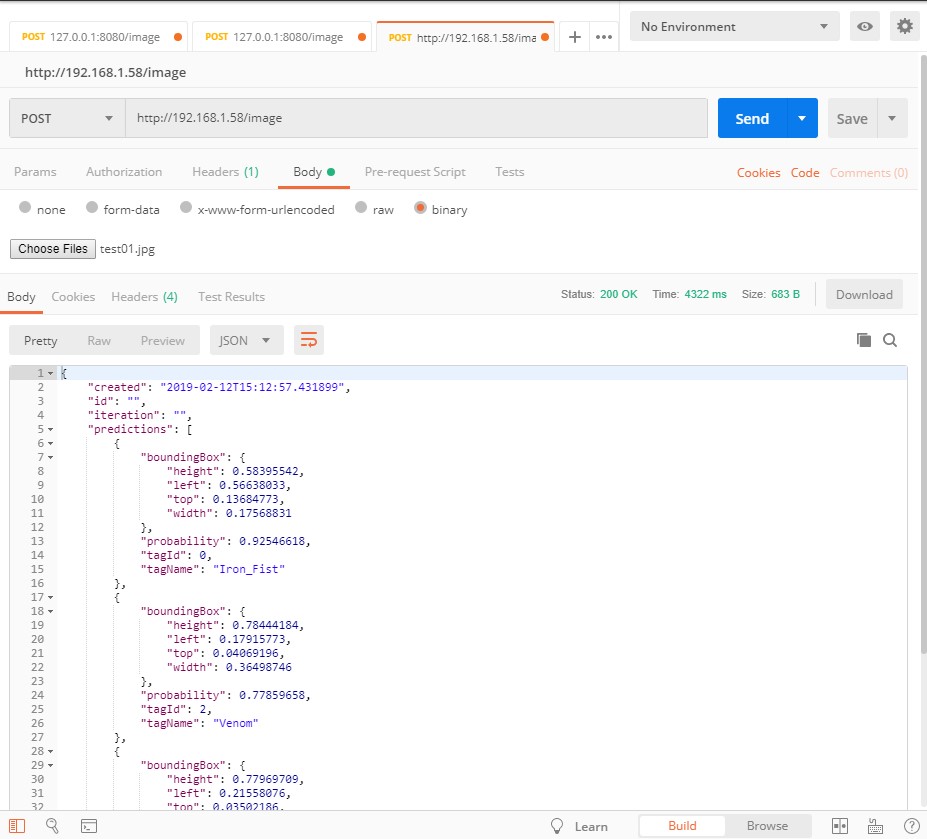
That’s cool. A small CustomVision image analyzer server for less than $30 !
Happy coding!
Greetings @ Toronto
El Bruno
References
My Posts
- Object recognition with Custom Vision and ONNX in Windows applications using WinML
- Object recognition with Custom Vision and ONNX in Windows applications using WinML
- Object recognition with Custom Vision and ONNX in Windows applications using Windows ML, drawing frames
- Object recognition with Custom Vision and ONNX in Windows applications using Windows ML, calculate FPS
- Can’t install Docker on Windows 10 Home, need Pro or Enterprise
- Running a Custom Vision project in a local Docker Container
- Analyzing images in a Console App using a Custom Vision project in a Docker Container
- Analyzing images using PostMan from a Custom Vision project hosted in a Docker Container
- Building the CustomVision.ai project in Docker in a RaspberryPi
- Container dies immediately upon successful start in a RaspberryPi. Of course, it’s all about TensorFlow dependencies
Windows 10 and YOLOV2 for Object Detection Series
- Introduction to YoloV2 for object detection
- Create a basic Windows10 App and use YoloV2 in the camera for object detection
- Transform YoloV2 output analysis to C# classes and display them in frames
- Resize YoloV2 output to support multiple formats and process and display frames per second
- How to convert Tiny-YoloV3 model in CoreML format to ONNX and use it in a Windows 10 App
- Updated demo using Tiny YOLO V2 1.2, Windows 10 and YOLOV2 for Object Detection Series
- Alternatives to Yolo for object detection in ONNX format
 El Bruno
Leave a reply to #AI – My posts on CustomVision.ai, running on ONNX, Docker, on PC, RaspberryPi, MacOS and more ! – El Bruno Cancel reply