
Hi !
I’ve write some posts about how to install .Net Core and Visual Studio Code on a Raspberry Pi 4. However, I’m testing something new in the device and I realize that my posts are no longer valid for the .Net Core installation. So, here is an updated version.
Download .Net Core 3.1 Image
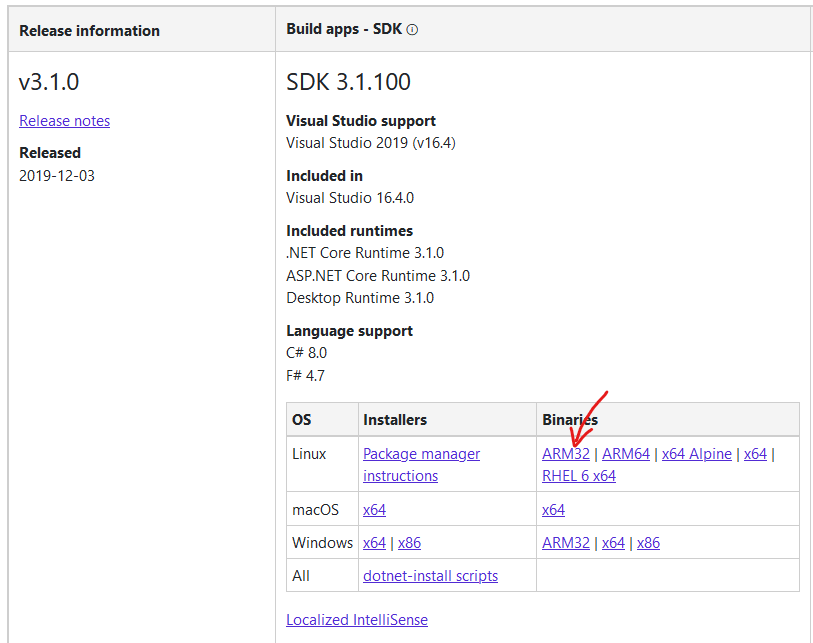
1st we need to download the 3.1 version of .Net Core (see references). For the Raspberry Pi, we will use the ARM32 binaries.
Installation on Raspbian
The documentation has a official script to install .Net Core in a ARM32 Linux OS. However it won’t work in Raspbian.
Here is the updated script to use in Raspbian
sudo mkdir -p $HOME/dotnet
sudo tar zxf dotnet-sdk-3.1.100-linux-arm.tar.gz -C $HOME/dotnet
export DOTNET_ROOT=$HOME/dotnet
export PATH=$PATH:$HOME/dotnet
Important: you need to run this on the same directory where the .Net Core image [dotnet-sdk-3.1.100-linux-arm.tar.gz] was downloaded
After running this commands, we will have .Net unzipped and installed

Testing Installation
Once we finish the installation, we can test with the command [dotnet]

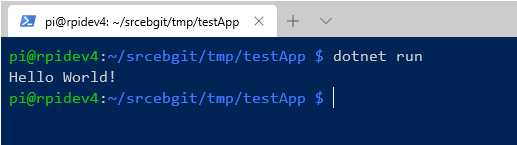
And we can create and build a test project in 2 steps.
Happy coding !
Greetings @ Burlington
El Bruno
References
- Download .Net Core 3.1 https://dotnet.microsoft.com/download/dotnet-core/3.1
- Blink Blink ICE Tower CPU Cooling Fan for Raspberry Pi https://www.seeedstudio.com/Blink-Blink-ICE-Tower-CPU-Cooling-Fan-for-Raspberry-Pi-Support-Pi-4-p-4215.html
My posts on El Bruno
My posts on Raspberry Pi ⚡🐲⚡
Dev posts for Raspberry Pi
- How to grant permissions to a folder after git clone, to perform dotnet restore on a Raspberry Pi
- How to install .Net Core 3.1 in a Raspberry Pi 4
- Installing Visual Studio Code in a Raspberry Pi 4, run as root, fix black screen
- How to install .Net Core in a Raspberry Pi 4 and test with Hello World
- Build and Run C# NetCore projects in a Raspberry Pi 4 with Visual Studio Code
- Let’s do some Git dev in Raspberry Pi 4 (GitHub and Azure DevOps!)
- Install OpenCV
- Install Python 🐍 Virtual Environments in Raspberry Pi
- Setup SSH passwordless access to remote work with Docker 🐳
- Manage Docker 🐳 as a non-root user
- Build Docker 🐳 images from Visual Studio Code remotely using a Raspberry Pi
Tools and Apps for Raspberry Pi
- Where is my Task Manager in RaspberryPi? Let’s try htop
- Multi-monitor 📺 in Raspberry Pi 4 rocks !
- Double Commander on RaspberryPi4, because files are important
- How to install Docker 🐳 in a Raspberry Pi 4
- Installing Visual Studio Code in a Raspberry Pi
- Installing Visual Studio Code in a Raspberry Pi, run as root, fix black screen (Updated)
- 6 commands to install OpenCV for Python 🐍 in a Raspberry Pi 4
Setup the device
- 1st Setup without monitor 📺: auto connect to WiFi 📶, enable SSH, update and more
- Setup without monitor: enable VNC
- How to enable auto start with HDMI safe mode
- Running a Python 🐍 script in a Python Virtual Environment on reboot / startup
- Setup Wifi on Ubuntu


 El Bruno
Leave a reply to Raspberry pi 4 | cagylogic Cancel reply