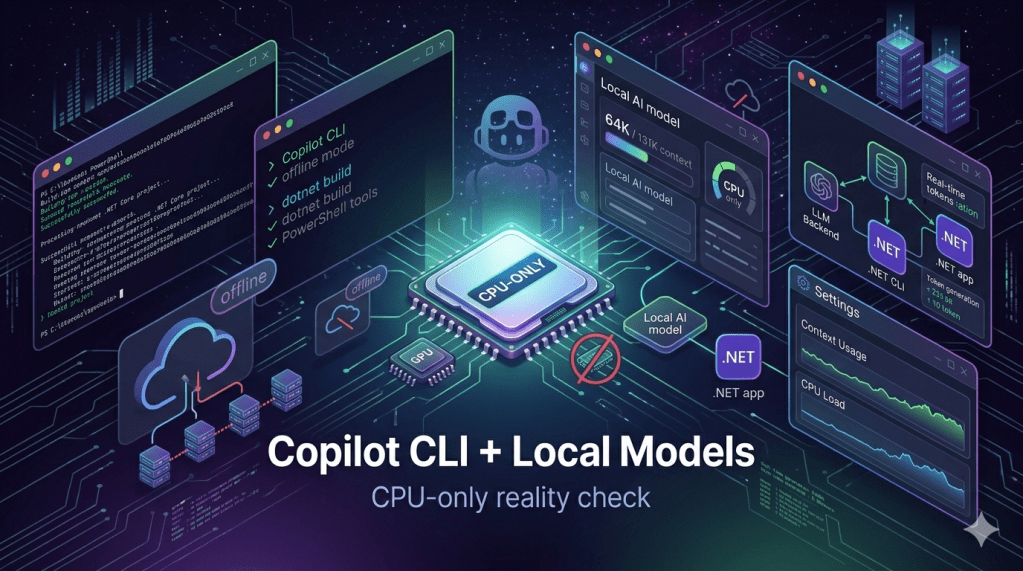
⚠️ This blog post was created with the help of AI tools. Yes, I used a bit of magic from language models to organize my thoughts and automate the boring parts, but the geeky fun and the 🤖 in C# are 100% mine.
TL;DR
I tested GitHub Copilot CLI running offline with local models on a CPU-only Microsoft Dev Box.
The short version:
- Ollama worked for basic offline prompts, but struggled with long-context agentic workflows and tool execution on CPU-only hardware.
- LM Studio worked better as the local OpenAI-compatible provider.
google/gemma-4-e2bsuccessfully executed Copilot CLI PowerShell tools.- 32K and 64K context were the practical sweet spot for guided development.
- 131K context worked as a stress test, but it was not practical as a daily CPU-only workflow.
- Copilot CLI interactive mode worked well with small, explicit, validated tasks.
- SQUAD/autopilot long workflows were not reliable enough on CPU-only hardware.
- Final takeaway: local Copilot CLI works on CPU-only, but as a guided pair-programming workflow, not as a fully autonomous engineering team.
Or, in one sentence:
CPU-only can be your copilot. Just do not promote it to engineering manager yet 😅
The experiment goal
This experiment started with a simple question:
Can I use GitHub Copilot CLI with a local model, offline, to work on a real .NET project?
The project was:
https://github.com/brunoghcpft-oss/ElBruno.NetAgent
The bigger idea was also very attractive:
GitHub Copilot CLI
+ SQUAD
+ local models
+ GitHub Copilot Free Tier
+ .NET
+ offline/local execution
That combination matters because it hints at a future where developers can experiment with local agentic workflows without always depending on cloud-hosted inference.
But I did not want to only ask the model questions.
I wanted to know if it could perform real developer tasks:
dotnet new sln
dotnet new wpf
dotnet new xunit
dotnet build
dotnet test
git status
create files
update docs
work inside Copilot CLI interactively
use tools
That was the real test.
Not “Can the model answer?”
But:
Can the model act through Copilot CLI tools and help build a real .NET project?
First attempt: Ollama
The first local provider I tested was Ollama.
Ollama is a great tool for running local models. It is simple, developer-friendly, and works very well for many local AI experiments.
The initial Copilot CLI setup looked like this:
$env:COPILOT_PROVIDER_BASE_URL = "http://localhost:11434/v1"$env:COPILOT_PROVIDER_TYPE = "openai"$env:COPILOT_MODEL = "qwen3.5"$env:COPILOT_OFFLINE = "true"
I tried several models, including:
qwen3.5
qwen3.5:4b
llama3.2
devstral-small-2
gemma4:e2b
qwen2.5-coder
The first big surprise was how large a “simple” Copilot CLI prompt actually becomes.
Even something like:
Reply exactly: OK
is not just that text. Copilot CLI also includes system instructions, tool definitions, environment data, agent instructions, and other context.
So a tiny user prompt can quickly become a large request.
With Ollama on this CPU-only machine, I saw a consistent pattern:
Small context → truncation or failure
Larger context → very slow prompt processing
Tool execution → unreliable
CPU-only → retries, transient errors, long waits
Ollama did work in some scenarios. It responded to simple prompts and could be useful for ask-style interactions.
But for Copilot CLI tool execution and agentic workflows, it was not reliable enough on this hardware.
My conclusion for Ollama:
Ollama worked, but mostly for ask mode. In this CPU-only setup, it was not a good fit for full Copilot CLI agentic coding.
The context problem
One of the most important lessons was about context size.
Copilot CLI does not only need room for your prompt. It also needs context for:
system instructions
tool definitions
agent instructions
workspace information
command outputs
conversation history
MCP/tool metadata
custom agent context
The GitHub Copilot CLI best practices mention the value of models with large context windows for agentic work:
https://docs.github.com/en/copilot/how-tos/copilot-cli/cli-best-practices
The command reference is also useful when exploring Copilot CLI behavior and options:
https://docs.github.com/en/copilot/reference/copilot-cli-reference/cli-command-reference
A task that looks small to us can become a much larger request for the CLI.
For example:
Create a WPF project and run tests.
That sounds simple. But an agentic CLI workflow may need to include repo state, tools, instructions, command outputs, and validation steps.
More context helps because the request fits better.
But on CPU-only hardware, more context is not free:
more context
= more prompt prefill
= more CPU work
= more waiting
= more chances for retries or timeouts
So context solved one problem and created another.
The request could fit.
But now the CPU had to process it.
Slowly.
Very slowly.
Moving from Ollama to LM Studio
The experiment changed when I moved from Ollama to LM Studio.
LM Studio provides a local OpenAI-compatible server. In this setup, the endpoint was:
http://localhost:1234/v1
The Copilot CLI environment variables became:
$env:COPILOT_PROVIDER_BASE_URL = "http://localhost:1234/v1"$env:COPILOT_PROVIDER_TYPE = "openai"$env:COPILOT_MODEL = "google/gemma-4-e2b"$env:COPILOT_OFFLINE = "true"
The model I used for the successful runs was:
google/gemma-4-e2b
One LM Studio setting was critical:
Max Concurrent Predictions = 1
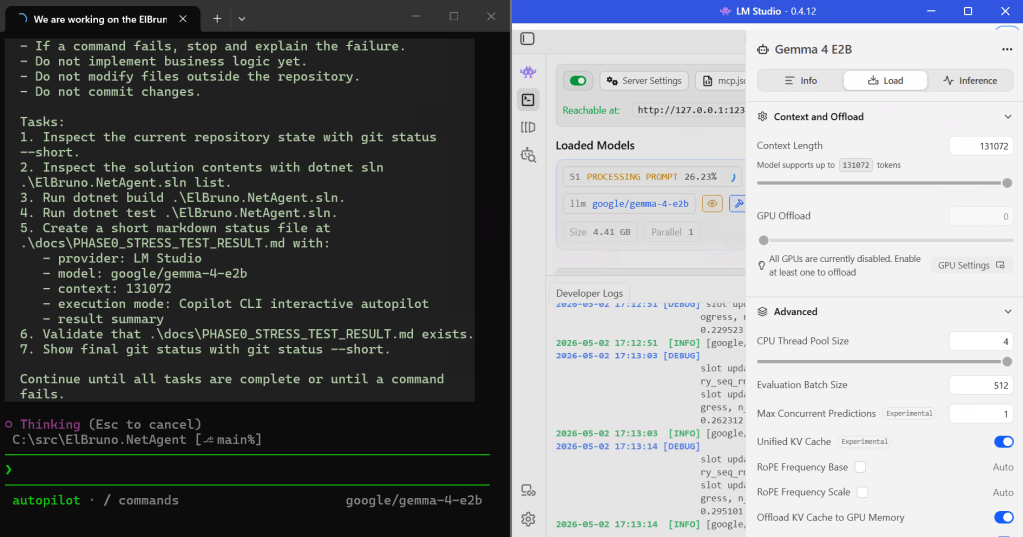
This matters because if the context length is set high but the server splits capacity across multiple concurrent predictions, each request may effectively get less usable context.
For this experiment, I wanted one Copilot CLI request to get the full available context.
The key LM Studio settings became:
Context Length: 32768, 65536, and 131072 during stress testing
Max Concurrent Predictions: 1
Keep Model in Memory: ON
LM Studio also gave me much better observability.
With Ollama, I was mostly reading logs and guessing.
With LM Studio, I could see the loaded model, server status, effective configuration, and live prompt processing progress.
That mattered a lot.
With LM Studio, I stopped guessing. I could see the prompt processing percentage moving.
The first real tool execution
The first major breakthrough was not the model answering a question.
The breakthrough was tool execution.
I asked Copilot CLI to use the PowerShell tool and create a file.
The first attempt almost worked, but failed because the tool call was missing a required field:
“description”: Required
That was an important lesson.
The model was trying to use the tool, but the function call was incomplete.
So I changed the prompt pattern.
The working pattern became:
Use the powershell tool. The powershell tool call must include both required fields: command and description. Run this exact command: . Use this description: . Do not only describe the action.
Example:
Use the powershell tool. The powershell tool call must include both required fields: command and description. Run this exact command: echo LMSTUDIO_E2B_TOOL_TEST > lmstudio-e2b-tool-test.txt. Use this description: Create LM Studio tool test file. Do not only describe the action.
This time, Copilot CLI executed the command.
The file was created.
That was the first real “OK”.
Not just:
The model answered.
But:
The model used Copilot CLI tools to change the filesystem.
That changed the experiment.
From 16K to 32K
At 16K context, basic tool execution worked.
But when I tried to create a larger Markdown file using multiline content, the result became unreliable. The model claimed success, but the file was not created correctly.
This taught me something important:
More context is not the only problem. Command complexity matters too.
Long multiline here-strings, large embedded Markdown blocks, and complex PowerShell escaping were too much for this local setup.
So I moved to a stricter execution rule:
one prompt
one tool
one bounded command
one validation
Then I increased the context to 32K and started running real Phase 0-style .NET setup tasks.
This worked.
Copilot CLI successfully executed commands like:
dotnet new sln -n ElBruno.NetAgent
Then:
New-Item -ItemType Directory -Force -Path .\srcNew-Item -ItemType Directory -Force -Path .\tests
Then:
dotnet new wpf -n ElBruno.NetAgent -o .\src\ElBruno.NetAgent
Then:
dotnet new xunit -n ElBruno.NetAgent.Tests -o .\tests\ElBruno.NetAgent.Tests
Then:
dotnet sln .\ElBruno.NetAgent.sln add .\src\ElBruno.NetAgent\ElBruno.NetAgent.csprojdotnet sln .\ElBruno.NetAgent.sln add .\tests\ElBruno.NetAgent.Tests\ElBruno.NetAgent.Tests.csproj
And finally:
dotnet build .\ElBruno.NetAgent.slndotnet test .\ElBruno.NetAgent.sln
This was a big milestone.
With LM Studio, Gemma 4 E2B, and explicit tool instructions, Copilot CLI created a real .NET solution and validated it.
The runtime was not fast. Most commands took several minutes.
But they worked.
The practical prompt pattern
The reliable prompt style was very explicit.
For example:
Use the powershell tool. The powershell tool call must include both required fields: command and description.
Run this exact command:
dotnet build .\ElBruno.NetAgent.slnUse this description:
Build ElBruno NetAgent solution.Do not only describe the action.
This is not elegant.
But it was reliable.
The important parts were:
name the tool
state the required fields
give the exact command
give the description
tell it not to only describe the action
include validation when possible
A better workflow emerged:
ask for one small task
execute one command
validate the result
continue
That was the first point where the experiment became useful.
Not autonomous.
But useful.
Moving to 64K context
After 32K worked, I tested 64K.
The environment variables became:
$env:COPILOT_PROVIDER_BASE_URL = "http://localhost:1234/v1"$env:COPILOT_PROVIDER_TYPE = "openai"$env:COPILOT_MODEL = "google/gemma-4-e2b"$env:COPILOT_PROVIDER_MAX_PROMPT_TOKENS = "65536"$env:COPILOT_PROVIDER_MAX_OUTPUT_TOKENS = "512"$env:COPILOT_OFFLINE = "true"
In LM Studio:
Context Length: 65536
Max Concurrent Predictions: 1
I tested a combined command:
git status --short; dotnet test .\ElBruno.NetAgent.sln; git status --short
It worked.
The important observation was that 64K did not magically transform the model.
The effective token usage was still around the same range as several 32K tests.
So 64K gave the workflow more room, but it did not remove the need for disciplined prompts.
My conclusion:
64K worked, but it did not magically make the model smarter. It just gave the workflow more breathing room.
Testing Copilot CLI interactive mode
Up to this point, many tests used:
copilot -p "<prompt>"
That was useful for deterministic experiments, but it was not the workflow I really cared about.
The real workflow should happen inside Copilot CLI.
So I launched Copilot CLI interactively:
copilot `--disable-builtin-mcps `--no-remote `--yolo `--stream on
Then I gave instructions inside the CLI.
This also worked.
I tested:
git status –short
dotnet test .\ElBruno.NetAgent.sln
create folders
validate files
The interactive workflow was more natural.
But the same rule still applied:
small steps
explicit tool call
validation
no giant task requests
At this point, the conclusion was:
Interactive Copilot CLI with a local model is usable on CPU-only hardware, as long as the work is guided and constrained.
The 131K context stress test
LM Studio showed that google/gemma-4-e2b could be configured with a context length of 131072 tokens.
So I tried the big one.
In LM Studio:
Context Length: 131072
Max Concurrent Predictions: 1
In PowerShell:
$env:COPILOT_PROVIDER_MAX_PROMPT_TOKENS = "131072"$env:COPILOT_PROVIDER_MAX_OUTPUT_TOKENS = "1024"
Then I ran Copilot CLI interactively and enabled autopilot.
The stress test asked Copilot CLI to:
inspect git status
inspect solution contents
run build
run tests
create a status file
validate the status file
show final git status
This worked well enough.
The model executed build and tests, created the status file, and I manually validated the result.
The generated status file contained:
provider: LM Studio
model: google/gemma-4-e2b
context: 131072
execution mode: Copilot CLI interactive autopilot
Then I corrected it with a micro-prompt to add the missing result summary.
Manual validation passed:
Test-Path .\docs\PHASE0_STRESS_TEST_RESULT.mdGet-Content .\docs\PHASE0_STRESS_TEST_RESULT.mdgit status --shortdotnet test .\ElBruno.NetAgent.sln
So, yes:
131K context worked.
But there is an important nuance:
131K worked technically. That does not mean 131K was practical on CPU-only hardware.
For the successful stress test, Copilot CLI did not actually need to consume the full 131K context. The larger context was available, but the workflow still depended on bounded tasks.
The SQUAD test
Finally, I tried the big question:
Can SQUAD run this as a more autonomous workflow?
This was the most interesting failure.
I reactivated the SQUAD custom agent and asked it to:
- Inspect the repository.
- Update the existing SQUAD execution rules with a local model execution rule.
- Implement a simple WPF status display.
- Build.
- Test.
- Show final git status.
- Summarize the changes.
This is where CPU-only started to show the real limit.
Copilot CLI selected the custom agent:
Selected custom agent: Squad
Then transient API errors started appearing.
Then a tool call failed because it was missing the required description field:
“description”: Required
After that, it executed git status --short, but then started claiming that the workflow had completed, including rule updates, build/test sequence, and feature integration.
The problem: the log did not show reliable tool-call evidence for all those claimed actions.
That is the danger zone.
The model can say:
Done.
But as developers, we need:
Show me the tool output.
Show me the file diff.
Show me the build.
Show me the test result.
The LM Studio logs showed the other side of the problem: long SQUAD/autopilot workflows generate lots of reasoning and inflate the prompt. The model was processing a large conversation and spending a lot of time in reasoning rather than clean tool execution.
This was the final conclusion for SQUAD on CPU-only:
SQUAD/autopilot long workflows are not reliable enough on this hardware. The model can drift, retries can appear, malformed tool calls can happen, and it may claim completion without enough verified execution.
What worked well
This setup worked well for guided work:
LM Studio
- google/gemma-4-e2b
- Copilot CLI
- offline mode
- PowerShell tools
- 32K / 64K context
- small tasks
- manual validation
It successfully handled:
dotnet new sln
dotnet new wpf
dotnet new xunit
dotnet sln add
dotnet build
dotnet test
git status
file creation
small docs updates
interactive Copilot CLI prompts
autopilot stress test with manual validation
That is a real result.
It means local model workflows for .NET development are possible on CPU-only hardware.
Slow, yes.
But possible.
What did not work well
This setup did not work well for:
long autonomous SQUAD execution
large “do the whole phase” prompts
complex multiline file generation
large here-strings
unattended autopilot loops
claims without validation
CPU-only 131K workflows as a daily mode
The main risks were:
very slow prompt processing
transient API errors
malformed tool calls
missing required tool fields
reasoning drift
false completion claims
too much context for CPU-only hardware
The most important failure mode was not:
The model cannot answer.
The most important failure mode was:
The model claims that work is complete, but the validated tool evidence is incomplete.
That is why manual validation is not optional.
The sweet spot
For this CPU-only VM, the sweet spot is:
Provider: LM Studio
Model: google/gemma-4-e2b
Context: 32K or 64K
Max Concurrent Predictions: 1
Copilot CLI: offline + no remote
Mode: interactive
Workflow: one bounded task at a time
Validation: always
The best working rule:
One prompt.
One tool.
One bounded command.
One validation.
This is not as flashy as “fully autonomous AI developer.”
But it is much more realistic.
And it works.
Recommended Copilot CLI setup
This is the setup I would keep for guided local work:
$env:COPILOT_PROVIDER_BASE_URL = "http://localhost:1234/v1"$env:COPILOT_PROVIDER_TYPE = "openai"$env:COPILOT_MODEL = "google/gemma-4-e2b"$env:COPILOT_PROVIDER_MAX_PROMPT_TOKENS = "65536"$env:COPILOT_PROVIDER_MAX_OUTPUT_TOKENS = "512"$env:COPILOT_OFFLINE = "true"copilot ` --disable-builtin-mcps ` --no-remote ` --yolo ` --stream on
Then inside Copilot CLI, use prompts like this:
Use the powershell tool. The powershell tool call must include both required fields: command and description.
Run this exact command:
dotnet test .\ElBruno.NetAgent.slnUse this description:
Run ElBruno NetAgent tests.Do not only describe the action.
Again, not elegant.
But reliable.
Test environment
These results are based on one CPU-only virtual machine. They should not be treated as a universal benchmark for Copilot CLI, LM Studio, Ollama, or Gemma 4 E2B.
Hardware and OS:
Environment: Microsoft Dev Box
Dev Box size: AMD 8 vCPU / 32 GB RAM / 1024 GB storage
Processor: AMD EPYC 7763 64-Core Processor @ 2.44 GHz
Installed RAM: 32.0 GB
Storage: 1.00 TB
GPU: None
Dedicated VRAM: None
System type: 64-bit operating system, x64-based processor
Operating system: Windows 11 Enterprise
Windows version: 25H2
OS build: 26200.8246
Experiment setup:
Shell: PowerShell
Main successful local model host: LM Studio
Main successful model: google/gemma-4-e2b
Other local model host tested: Ollama
Copilot account: GitHub Copilot Free Tier
Copilot CLI mode: offline / local provider
Project type: .NET WPF app + xUnit test project
The important detail is that this machine had no dedicated GPU and no dedicated VRAM.
All local model inference happened on CPU.
That is why long-context workflows, especially SQUAD/autopilot runs, became slow and fragile even when the model technically supported 131K context.
Final conclusion
This experiment changed my expectations.
At the beginning, I thought the question was:
Which local model works with Copilot CLI?
By the end, the real question was:
What workflow makes local Copilot CLI reliable enough to be useful?
The answer was not just the model.
The answer was the combination of:
LM Studio
- Gemma 4 E2B
- enough context
- low concurrency
- explicit tool instructions
- small tasks
- constant validation
On CPU-only hardware, the result is clear:
Good for guided pair programming.
Good for small .NET tasks.
Good for local/offline experiments.
Good for learning how agentic workflows behave.Not good for fully autonomous SQUAD execution.
Not good for long unattended implementation phases.
Not good for pretending CPU-only is a cloud GPU cluster.
Local AI is real.
Offline developer workflows are real.
Copilot CLI with local models is real.
But autonomy still needs the right model, the right hardware, and a lot of discipline.
CPU-only can be your copilot.
Just do not promote it to engineering manager yet 😅
Happy coding!
Greetings
El Bruno
More posts in my blog ElBruno.com.
More info in https://beacons.ai/elbruno


Leave a Reply