⚠️ This blog post was created with the help of AI tools. Yes, I used a bit of magic from language models to organize my thoughts and automate the boring parts, but the geeky fun and the 🤖 in C# are 100% mine.
Hi!
If you’re running Ollama locally on Windows—whether you’re tinkering with LLMs, building local AI demos, or just curious about the overhead of large models—you’ve probably wondered: Is it still running? How much CPU is it chewing? Did that model load?
Welcome to ElBruno.OllamaMonitor.
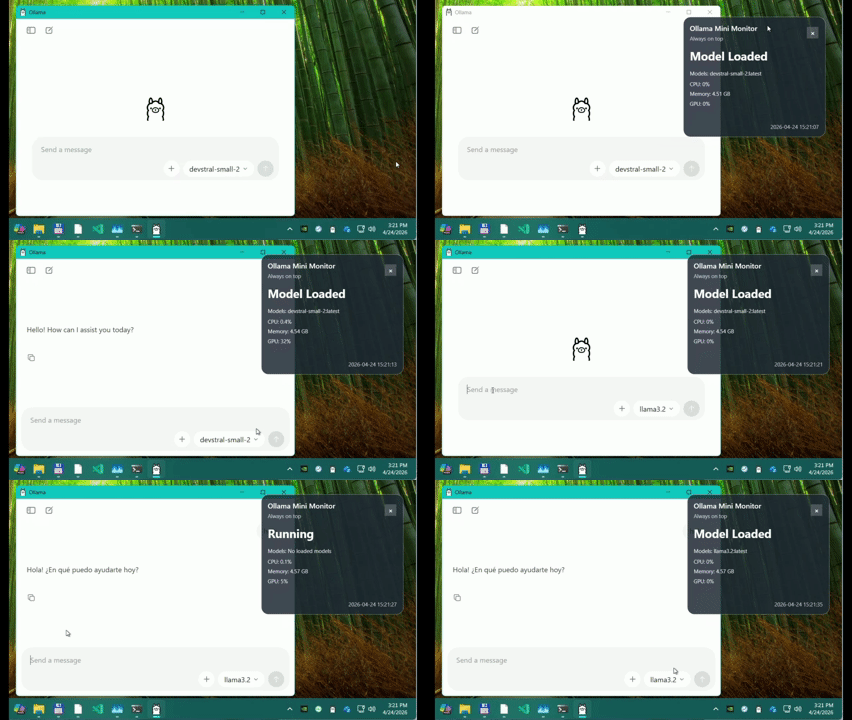
It’s a no-frills system tray app that sits in your Windows notification area and tells you, at a glance, exactly what your local Ollama instance is doing. No dashboards. No complexity. Just real-time status, resource metrics, and a floating details window when you need more info.
ElBruno.OllamaMonitor sits in your Windows system tray and tells you:
- Is Ollama running? A glance at the tray icon shows you the status.
- Is a model loaded? See what’s currently active.
- How much CPU, RAM, and GPU is it using? Real-time resource metrics from the Ollama process.
- Any errors? Get instant visual feedback if something’s wrong.
Perfect for:
- Local AI developers who need quick visibility into Ollama
- Demo presenters who want to know resource impact in real-time
- Anyone running large models locally who’s curious about the overhead
Installation
Via NuGet (Recommended)
dotnet tool install --global ElBruno.OllamaMonitor
Then launch anytime:
ollamamon
From Source
git clone https://github.com/elbruno/ElBruno.OllamaMonitor.gitcd ElBruno.OllamaMonitordotnet build src/ElBruno.OllamaMonitor/dotnet run --project src/ElBruno.OllamaMonitor/
Quick Start
- Launch the app:
ollamamonThe app starts minimized to the tray. Click the icon to open the details window or mini monitor. - Check your status: Look at the tray icon color—it tells you Ollama’s status at a glance.
- Configure (optional): See Configuration Guide for endpoint, refresh rate, and threshold settings.
Features
- ✅ System Tray Integration — Runs in the background, always visible
- ✅ Visual Status Indicators — Color-coded icons for quick status checks
- ✅ Standard Details Window — A normal Windows window with minimize/close behavior that keeps the app in the tray when closed
- ✅ Mini Monitor Window — A semi-transparent always-on-top compact view for CPU, RAM, GPU, and model status
- ✅ Local Configuration — Customize endpoint, refresh rate, thresholds
- ✅ CLI Commands — Fully scriptable configuration
- ✅ GPU Metrics — Best-effort NVIDIA GPU tracking (if nvidia-smi is available)
- ✅ Copy to Clipboard — Quickly share diagnostics
- ✅ Manual Refresh — Force an immediate check
- ✅ Open Ollama URL — Quick link to the Ollama API
Requirements
- Windows 10 / Windows 11 (requires .NET 10 runtime, which can be downloaded from dotnet.microsoft.com)
- Ollama running locally (download from ollama.ai)
- .NET 10 SDK to build from source
Optional:
- nvidia-smi (NVIDIA GPU drivers) for GPU metrics
Configuration
See Configuration Guide for detailed setup, CLI commands, custom thresholds, and advanced options like remote Ollama monitoring.
Try it: dotnet tool install --global ElBruno.OllamaMonitor
Docs: See the GitHub repository
Made by: El Bruno — A .NET developer obsessed with local AI and productivity.
Happy coding!
Greetings
El Bruno
More posts in my blog ElBruno.com.
More info in https://beacons.ai/elbruno


Leave a Reply