Update: The product name is officially Visual Studio 2017 instead of Visual Studio 15.
Hello!
A few hours ago the 5 Preview of Visual Studio 15 was announced. And while many posts speak about the new C# 7, or what’s new in web development; not many of them shares the great improvements included in the installation process.
A few days ago I had to reinstall my computer from scratch and as always at the time of Visual Studio 2015 to reach, I had to prepare a few 100GBs in the SSD only to install the tools and then clone a repository.
I understand that to the time of install Xamarin and tools of development multi-platform, there are elements that take a lot of disk space, for example, the virtual machines. However, the classic Visual Studio Installer had reached a point where needed a renovation; and in Visual Studio 15, we have a new flavour here.
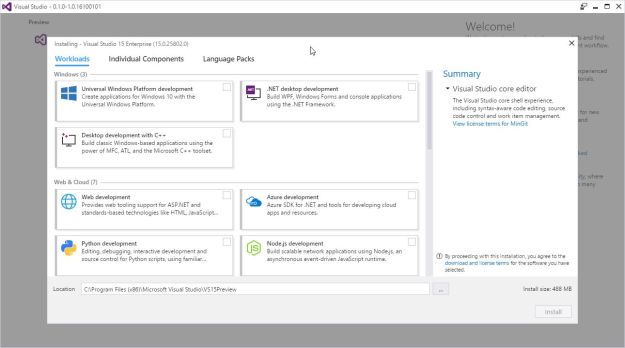
The first thing we see when we launched the installer is a sight with all the different branches of development that we can continue: for example, UWP or Classic Desktop Apps.

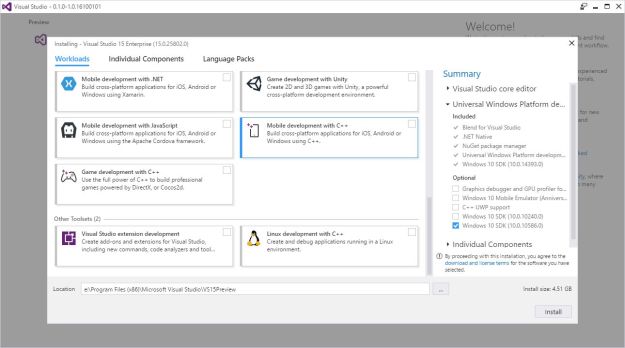
There are other options like web development or very deep and extreme options like Visual Studio Extensibility or Linux development with C++ (Yes that’s correct)
If you also want to have installed some specific .NET Framework versions or even additional languages such as F #, the section [Individual Components] presents these options.
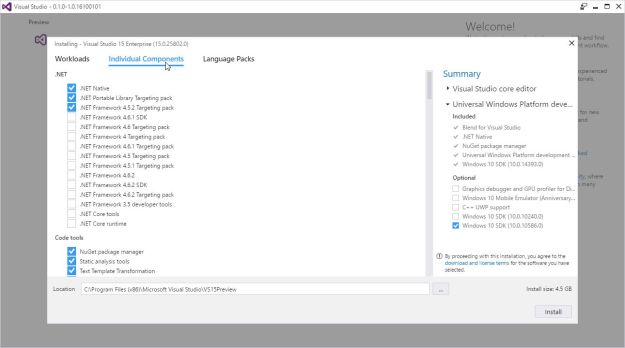
Here we can find also additional tools such as Git, GitHub for Visual Studio extension or emulators for Windows 10 Mobile Anniversary Edition and the Visual Studio Android Emulator.

Finally the section [Language Packs] allows us to… well, this is an easy one!

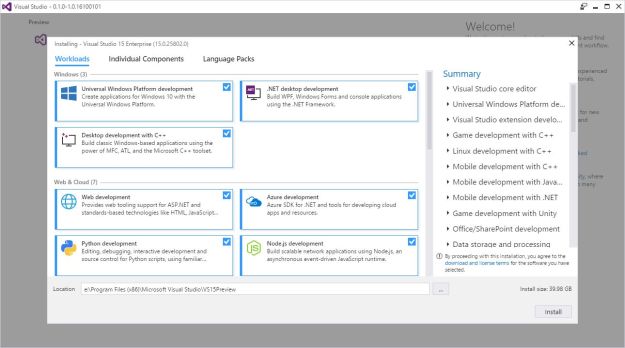
And just as a final curiosity, ALL the options selected to give us a total of ~40GB required.
Greetings @ Toronto
El Bruno
References
 El Bruno
Leave a reply to #VS2017 – How to select the components to install in each WorkLoad (ie: avoid #Unity3D) – El Bruno Cancel reply