⚠️ This blog post was created with the help of AI tools. Yes, I used a bit of magic from language models to organize my thoughts and automate the boring parts, but the geeky fun and the 🤖 in C# are 100% mine.
Hi!
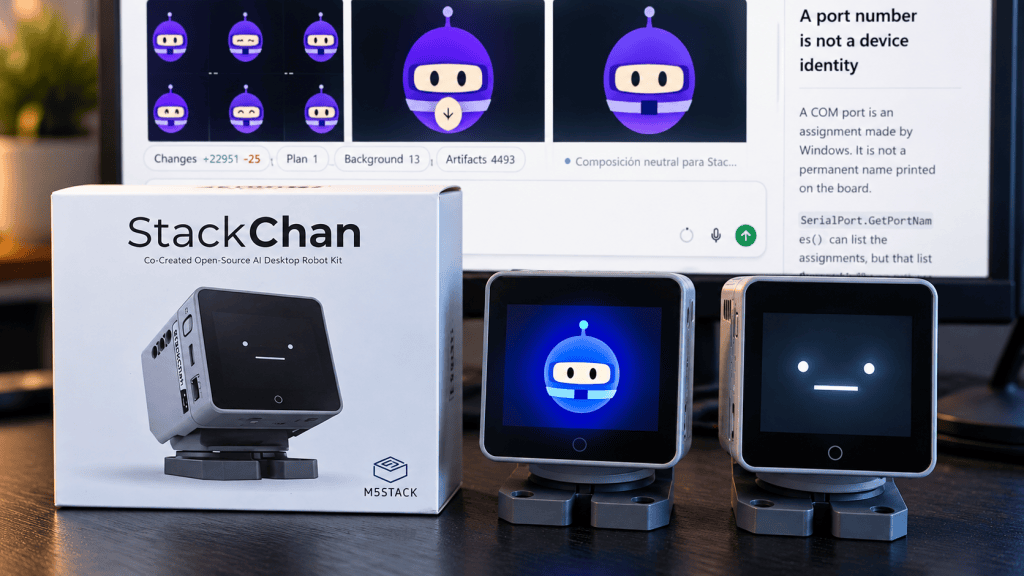
While building the USB demo for the upcoming New Year, New Bot series, I had two small robots connected to one Windows PC. Windows showed several COM ports, but the names did not tell me which cable belonged to which robot.
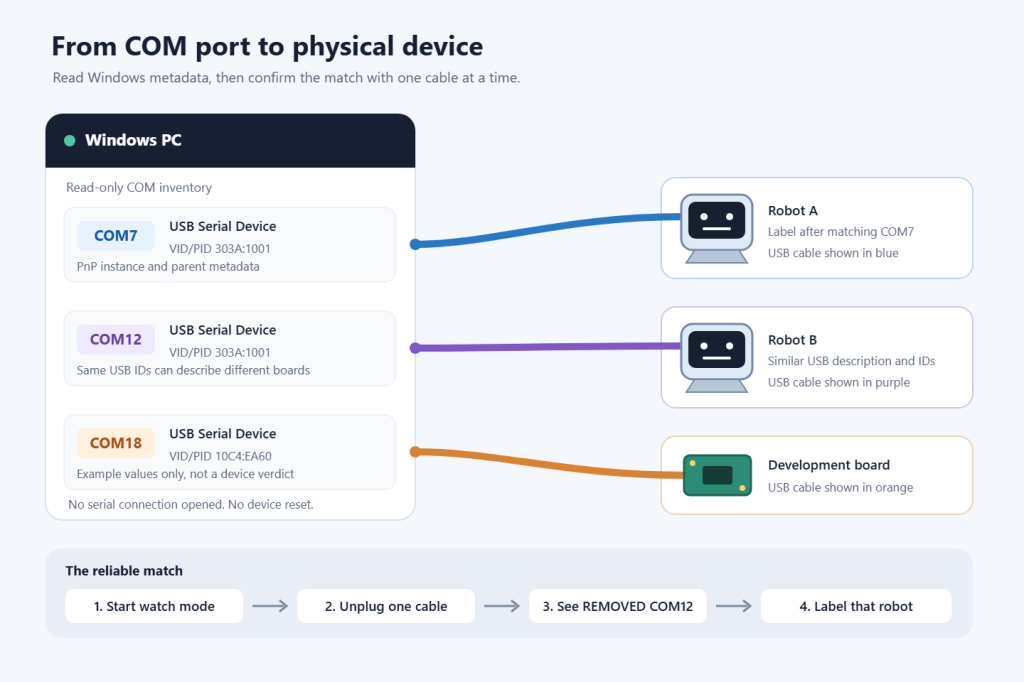
That matters before connecting to a device, and especially before choosing a firmware target. Two different boards can report the same USB vendor and product IDs. A COM number is a current Windows assignment, not a permanent identity.
The solution: read metadata, then unplug one cable
Instead of opening each serial port and guessing, this small console app reads Windows Plug and Play metadata: the COM assignment, device description, USB IDs, parent and location. It never opens a port, toggles DTR/RTS, resets a board or flashes firmware.
The diagram uses synthetic IDs. Notice that every cable has a clear, continuous path from the PC inventory to its device. The app helps narrow the match; disconnecting one cable and watching for REMOVED confirms which physical device it is.
The code: one file, no project scaffolding
The standalone sample targets .NET 10 and uses System.Management to ask Windows for present ports. It reads the COM assignment from the device’s registry metadata:
var query = new ObjectQuery( "SELECT * FROM Win32_PnPEntity WHERE PNPClass = 'Ports' AND Present = TRUE");using var searcher = new ManagementObjectSearcher( new ManagementScope(@"root\cimv2"), query, new EnumerationOptions { Timeout = TimeSpan.FromSeconds(5), ReturnImmediately = false });using var devices = searcher.Get();foreach (ManagementObject device in devices){ using (device) { string? instanceId = device["PNPDeviceID"] as string; if (string.IsNullOrWhiteSpace(instanceId)) throw new InvalidOperationException("A present port has no PnP instance ID."); using var key = Registry.LocalMachine.OpenSubKey( $@"SYSTEM\CurrentControlSet\Enum\{instanceId}\Device Parameters", writable: false); string? port = key?.GetValue("PortName") as string; // The app validates the COM name, reads optional metadata, and reports it. }}
The full code also handles ports disappearing during a query, orders ports numerically, and reports errors explicitly. --watch compares snapshots and reports added, removed or changed devices. --json makes the snapshot usable by another tool.
From the sample folder, with a stable .NET 10 SDK installed:
dotnet run SerialPorts.csdotnet run SerialPorts.cs -- --watchdotnet run SerialPorts.cs -- --jsondotnet run SerialPorts.cs -- --self-test
For two look-alike devices, run watch mode, unplug just one cable, wait for REMOVED, reconnect it and label that physical robot. Repeat for the other device. Do not use the inventory as an automatic firmware-target selector. The synthetic self-test checks parsing and device changes without WMI, the registry or hardware.
This is a small building block for the upcoming New Year, New Bot series, where we are exploring a desk companion built with StackChan and .NET.
Image note: the hero photo was provided by Bruno. The diagram is a hand-authored vector with synthetic port and USB ID values. Other draft illustrations are not used in this shorter version.
References
Happy coding!
Greetings
El Bruno
More posts in my blog ElBruno.com.
More info in https://beacons.ai/elbruno


Leave a Reply