⚠️ This blog post was created with the help of AI tools. Yes, I used a bit of magic from language models to organize my thoughts and automate the boring parts, but the geeky fun and the 🤖 in C# are 100% mine.
Hi!
usually hide my taskbar clock while recording videos, and after doing that dance one too many times, I had one goal: save a few clicks.
Then yesterday, during a GitHub Copilot CLI session (watch it here), I decided to pick up the ClockTray app and turn it into a CLI tool.
And… here we are. 🚀
Introducing the ClockTray CLI
ClockTray v1.0.0 is now a dual-mode utility combining a user-friendly GUI with powerful command-line controls.
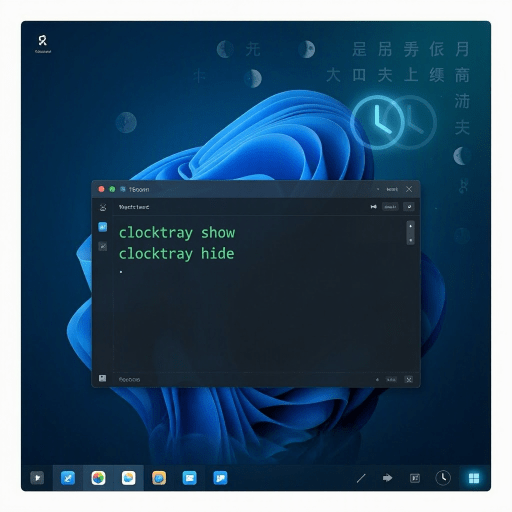
The headline feature? Full CLI support. You can now control your taskbar clock entirely from PowerShell, batch scripts, or any automation tool. Show it, hide it, check its status—all without touching the mouse.
The New CLI Commands
Here’s what you can do right from your terminal:
# Show the clock on your taskbarclocktray show# Hide the clockclocktray hide# Check the current statusclocktray status# View all available commandsclocktray --help# Check the versionclocktray --version
Each command is instant, non-blocking, and integrates seamlessly with your scripts and workflows.
One Tool, Two Modes
ClockTray now works the way you work:
GUI Mode: Launch the application normally for a traditional system tray experience. Right-click the icon to toggle your clock or access settings—perfect for quick manual control.
CLI Mode: Run clocktray commands from PowerShell, Windows Terminal, or your build scripts. Perfect for automation, CI/CD pipelines, and repetitive tasks.
You don’t need separate tools. You get both, in a single 30-second install.
Automation & Real-World Use Cases
Imagine these scenarios—now all possible with ClockTray:
- Streaming Setup: Hide the clock before you go live, show it again when you stop.
- Multi-Monitor Management: Toggle the clock based on which display you’re using—via a custom PowerShell profile.
- Build Pipelines: Hide the clock during automated testing, restore it when complete.
- Accessibility Workflows: Create quick-access scripts that adapt your desktop to different needs.
- Time-Tracking Scripts: Check the clock status as part of a larger automation routine.
PowerShell scripters and DevOps engineers, you’re going to love this.
Bonus Feature: Chinese Lunar Calendar Overlay
ClockTray also includes a beautiful overlay showing the Chinese lunar calendar—perfect if you’re tracking traditional holidays, working with international teams, or simply interested in lunar dates. This overlay displays alongside your taskbar clock and respects your show/hide commands.
Installation in 30 Seconds
You can install ClockTray as a global .NET tool from NuGet:
dotnet tool install --global ElBruno.ClockTray
That’s it. You’ll have clocktray available in any PowerShell session or terminal immediately.
Update an existing installation? Use:
dotnet tool update --global ElBruno.ClockTray
Get ClockTray Today
Explore the source code, contribute features, or report issues on GitHub. The project is open-source and welcomes your feedback.
What’s Next
With v1.0.0 released, we’re already thinking ahead. Future updates may include:
- Configuration files for default behavior
- Extended automation scenarios
- Cross-platform considerations
Your input shapes this tool. If you have ideas, open an issue or discussion on GitHub.
Try It Now
Whether you’re a PowerShell enthusiast, a DevOps engineer, or someone who just wants better desktop control, ClockTray v1.0.0 has something for you. Install it today, explore the CLI, and tell us what you build.
Happy coding!
Greetings
El Bruno
More posts in my blog ElBruno.com.
More info in https://beacons.ai/elbruno


Leave a comment