Hi !
The first time I was doing a demo and connecting my MacBook Pro to a projector, I found out that the screen settings and configuration in a MacOS are completely different to the usual Windows experience. And, IMHO, not in a good way.
In Windows, when you are working with 2 or more screens (monitors / projectors) you have the chance to define specific settings for each one. This settings include orientation, resolution, and more.


MacOS display runs at its native resolution, which is the best resolution designed for the display. To change the resolution, you need to open System Preferences and select displays. Then in the [Display section], we can change the resolutions by selecting the [Scaled] option.
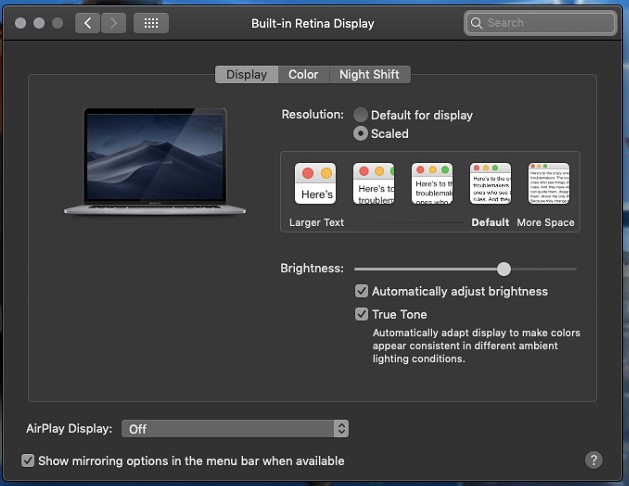
So far, so good. Each option also shows a “Looks like resolution …” options which is great. But, not good enough. Before a demo for a client or a user group, I like to dry run my presentations and demos using a custom resolution. You never know, which hardware is going to be at your final destination.
After testing a couple of apps, I finally found a very good one with the features I need:
Disable Monitor, https://github.com/Eun/DisableMonitor
Disable Monitor allows me to quickly change any screen resolution with 2 clicks; it also lock the screens and detect monitors.

Simple and easy. Happy coding!
Greeting @ Toronto
El Bruno
My posts on experiences in Mac from a Windows user

 El Bruno
Leave a comment