Hello!
Now that I’ve found a 2nd set of Hololens to work here in Toronto, is the time to go back to Unity3D and the HoloToolkit. More specific: it’s time to learn and test on one of the less documented features: Sharing Holograms.
Once we have imported package of HoloToolkit Unity (in the right way), we can see in the Assets folder Sharing.
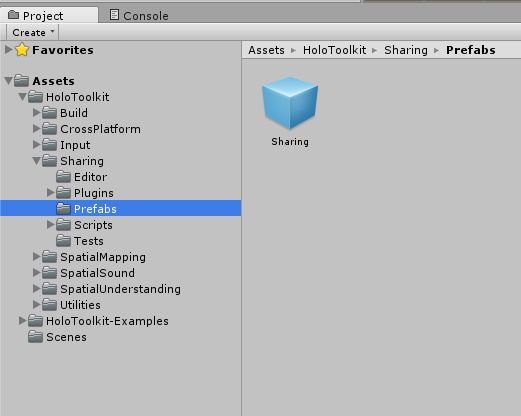
This is the element that we must add to our project of Unity it to have “Sharing” capabilities with other apps on Hololens. In the properties of this element, we see that it uses a couple of interesting classes:
- SharingStage.cs
- SharingSessionTracker.cs
- AutoJoinSession.cs
- CustomMessages.cs
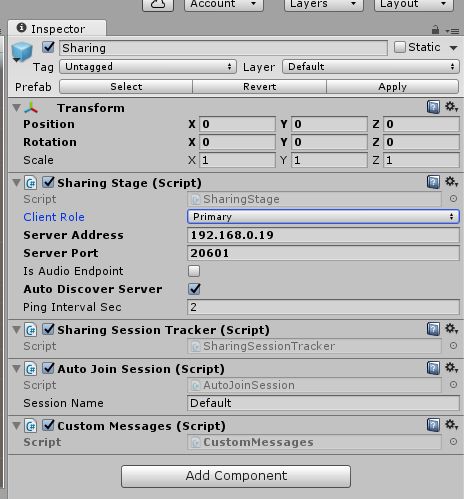
As always, in the absence of relevant documentation, I recommend you browse the source code since it is the simplest way to understand how this feature works. For now I only some of the [Sharing Stage] properties
- Client Role: defines the type of customer for a Sharing app. According to the documentation of the class C#:
/// Set whether this app should be a Primary or Secondary client.
/// Primary: Connects directly to the Session Server, can create/join/leave sessions
/// Secondary: Connects to a Primary client. Cannot do any session management
- Server Address and Server Port: You got this, this is easy: the IP address and port of the server that is used to coordinate the sharing of information between various devices
- Auto Discover Server: Only enabling this check, our app should be able to discover automatically Sharing Server on the same subnet. In my case, and such time by my local network restrictions, not have been able to discover it automatically, by what I had to configure manually the IP address and port.
After reading all this, comes to ask yourself where you’re Sharing Service. The server is an executable app hidden in the bowels of the HoloToolkit package.
$\HoloToolkit-Unity-master\External\HoloToolkit\Sharing\Server\SharingService.exe
Now you can launch the executable and have our Sharing Service Up and Running.
Note: There is also an option to launch Sharing Service from Unity menus. I have not managed to work. However I could not make it work.
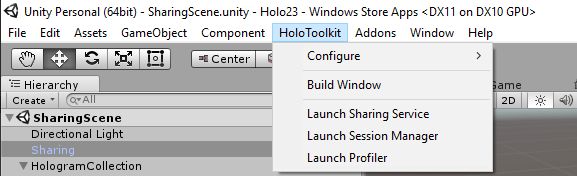
Now, more news, there are 2 ways to use the Sharing Service
- local, running in app mode
- service, running as a Windows service
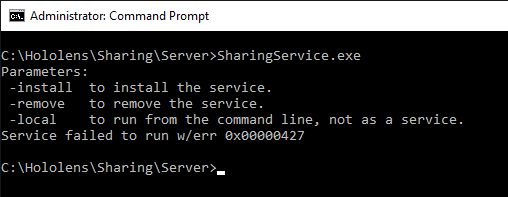
For this example I run the app in local mode. At this time we can see the following in the command console
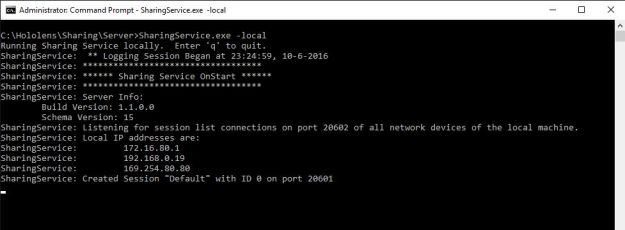
C:\Hololens\Sharing\Server>SharingService.exe -local
Running Sharing Service locally. Enter ‘q’ to quit.
SharingService: ** Logging Session Began at 23:24:59, 10-6-2016
SharingService: ***********************************
SharingService: ****** Sharing Service OnStart ******
SharingService: ***********************************
SharingService: Server Info:
Build Version: 1.1.0.0
Schema Version: 15
SharingService: Listening for session list connections on port 20602 of all network devices of the local machine.
SharingService: Local IP addresses are:
SharingService: 172.16.80.1
SharingService: 192.168.0.19
SharingService: 169.254.80.80
SharingService: Created Session “Default” with ID 0 on port 20601
When we launched an app created that use the Asset of Sharing, with properly configured values, we can see that the server detects a new session and begins to show logs on it.

As well, in the next post about Sharing I hope to show how 2 apps share and work on a same hologram!
Greetings @ Toronto
El Bruno
References
- GitHub, HoloToolkit
- GitHub, HoloToolkit Unity
- El Bruno, Import HoloToolkit package in Unity3D


 El Bruno
Leave a reply to Sachin Cancel reply