image

Hi !

If you are an advanced Windows user or a basic developer (like me), for sure you know the “path too long” issue. I used to get this error a lot with some MSBuild definitions when downloading or copying files. The error details are something similar to

TF270002: An error occurred copying files from <Path A> to <Path B>. Details: The specified path, file name, or both are too long. The fully qualified file name must be less than 260 characters, and the directory name must be less than 248 characters.

And even if this was 6 years ago, in today’s latest Windows 10 version, we still have the NTFS path issue. This is because the maximum length for a path (file name and its directory route) has been defined by 260 characters. This is what we usually knows as MAX_PATH.

Lucky for us, in the latest version of Windows 10 available via Windows Insider in the Fast Ring, we can change this defined length using some local policies.

image

The following steps describes how to do this.

  • Run [gpedit.msc], this will open the Open Group Policy Editor
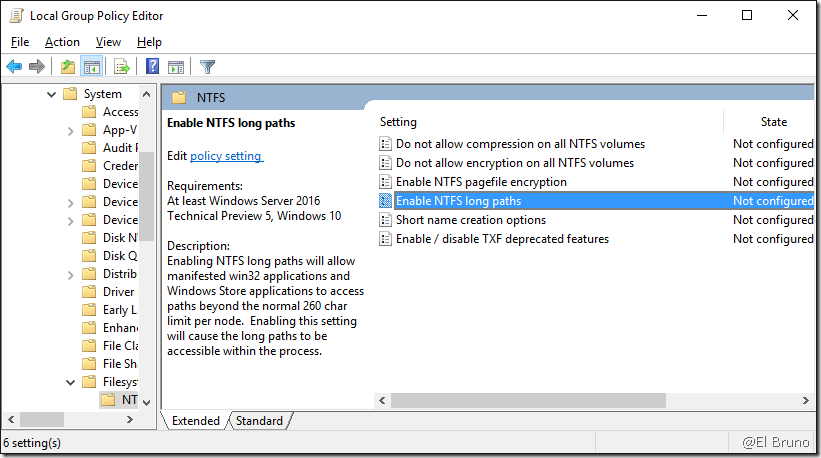
  • Navigate to [Local Computer Policy >> Computer Configuration >> Administrative Templates >> System >> Filesystem >> NTFS]
  • Click [Enable NTFS long paths]

image

  • Enable NTFS long pats

image

And that’s it! Now we can finally avoid the [MAX_PATH / path too long issue] Open-mouthed smile

Greetings @ Toronto

-El Bruno

References

19 responses to “#Windows10 – Path too long, not anymore !!! (Goodbye to 256 chars restriction)”

  1. Use Long Path Tool, Long Path Tool can simplify and probably end your problems in unlocking, managing and renaming files that appear to have a long filename.

    Like

    1. Thanks Roger !

      Like

      1. Use Long Path Tool,it works efficiently.

        Like

        1. Thanks Barness !

          Like

    2. i used Long path Tool for this issue and its resolved . so try this Long Path Tool

      Like

  2. “Long Path Tool” is just awsome

    Like

  3. “Long Path Tool” is very helpful

    Like

  4. I think “Long Path Tool” can fix this type of problem easily try to use.

    Like

  5. […] is a quick post day. Do you remember that Windows 10 finally add support to work with long paths? (MAX_PATH) So, with the release of .Net Framework 4.6.2 we also have support to fix this issue […]

    Like

  6. Use “LONG PATH TOOL”, it is useful for deleting the long file, renaming the error file,etc..It gives good result and easy to use.

    Like

    1. Thanks for the advice !
      Regards
      -Bruno

      Like

  7. Samantha chole Avatar
    Samantha chole

    “Long Path Tool” is very helpful for this error !
    You can use to solve this problem

    Like

    1. Thanks Samantha ! I’ll take a look at the tool 😀

      Like

  8. aiden carter Avatar
    aiden carter

    Long path tool is the very good program for error, unlock solution.
    Try it and solve your problem.
    I used long path tool and I solve my error, unlock problem solution.

    Like

    1. Thanks Aiden ! ^_^

      Like

  9. howard brooks Avatar
    howard brooks

    The Long path tool is the very best program for error, unlock solution.and it is very useful tool.

    Like

    1. Thanks howard!

      Like

  10. Hello,

    I had the same problem. I didn´t know what to do so I searched on the internet for some solutions.

    And I read about [b]Long Path Tool[/b], which is a great tool in these type of cases. 😮

    It worked really well. Hope it works for you too :p

    Like

  11. This is a really good method changing stuff in registry editor. I didn’t knew this earlier, I am currently using GS Richcopy 360 to solve this error and get multi threaded file transfer. It works really well and now I don’t get irritating errors.

    Like

Leave a reply to Corey Lean Cancel reply

Discover more from El Bruno

Subscribe now to keep reading and get access to the full archive.

Continue reading