Hi !
So, we are ready to go for the step 3, and start to use our bot in some channels:
- Create Hello Bot app using Visual Studio
- Publish the bot to Azure and register the bot in Microsoft Bot Framework
- Connect the bot to specific channels
As I wrote in my previous post, once we have out Bot registered, the Web Chat channel is automatically enabled for our Bot.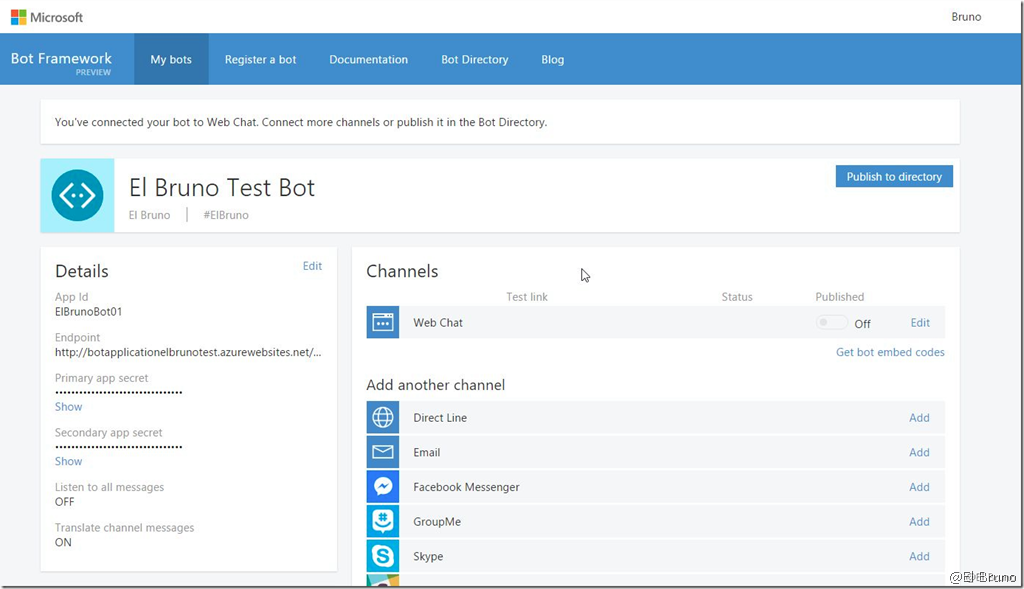
Skype Channel
My next natural step was to enable the bot in a Skype account. I was redirected to the Skype Bot Configuration page. As you can see in the following image, the configuration page is very straight forward, with all the necessary steps.
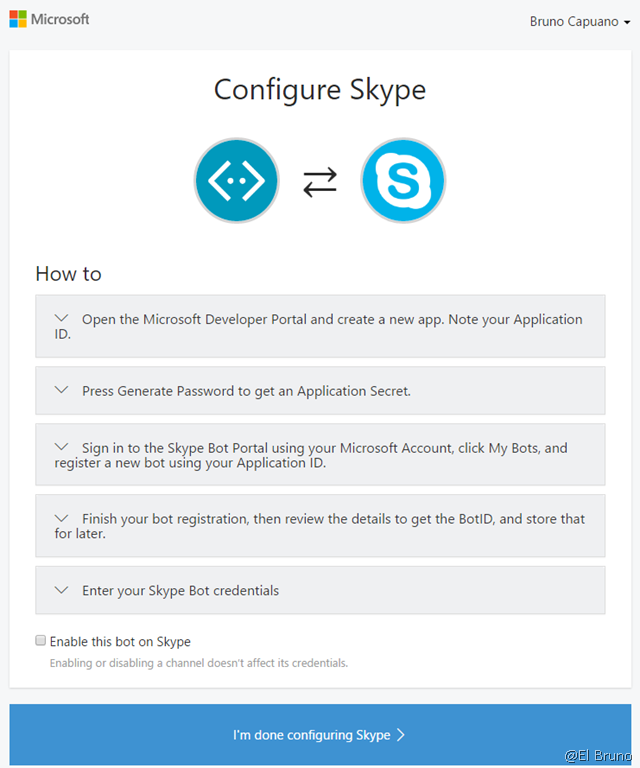
Once we get all the Bot information we need to go to the Skype Bot Portal using a Microsoft account. For this sample I’ve created a sample account [elbrunoblog@outlook.com] and requested access to be part of the Bot program.

At the end, to connect my Bot with Skype means wait until to get into the Skype Bot program. Time to move on.
Facebook Channel
Facebook Channel is similar. We start with a step by step page (Bot Facebook Configuration), where we have most of the necessary steps to publish and connect our bot with a Facebook page. So I decided to create a Facebook App which later will be used in my Facebook page (Yes, I’ve got a never seen Facebook page)

So, a couple of configuration minutes later I’ve got my basic Facebook App created and all the mandatory information was available for me.

At this moment, I can go back to my Facebook Bot Configuration page and start the Webhooks configuration

And that’s great! However, my app was submitted to Facebook and I need to wait until they approve the Facebook app. So no chance to test the bot here either 
Telegram Channel
So, at this moment I was very upset. I’ve spent some time dealing with Skype and Facebook, and I couldn’t test my robot in a final platform. However, Telegram was there with a big surprise for me.
Like Skype and Facebook, we have a nice Bot Telegram Configuration page with all the necessary steps to do this.

The creation of the bot is using @botfather, which is so smart. Bot Father is a Telegram bot to create bots !!!
So after a couple of seconds, I’ve got my Telegram Bot created and named @ElBrunoBot

And of course, I got a Token which I will use later on the Bot configuration page.
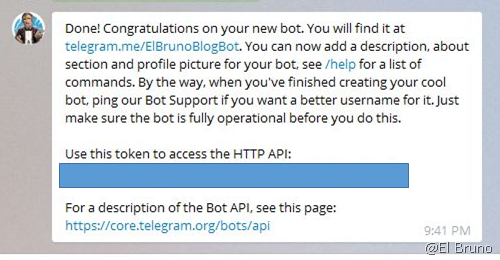
So, I enable my Telegram credentials for my bot and that’s it! is working.

Now I’ve got my Bot connected with 3 channels (even if the Facebook one is not working)
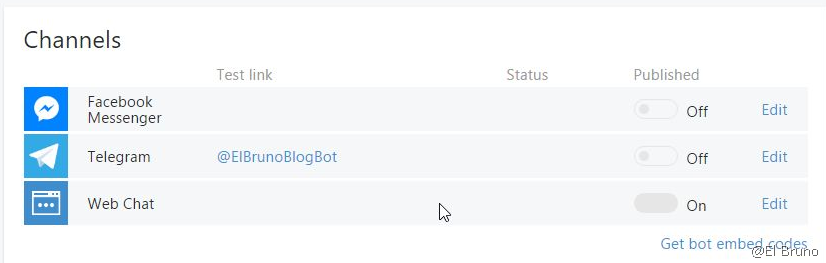
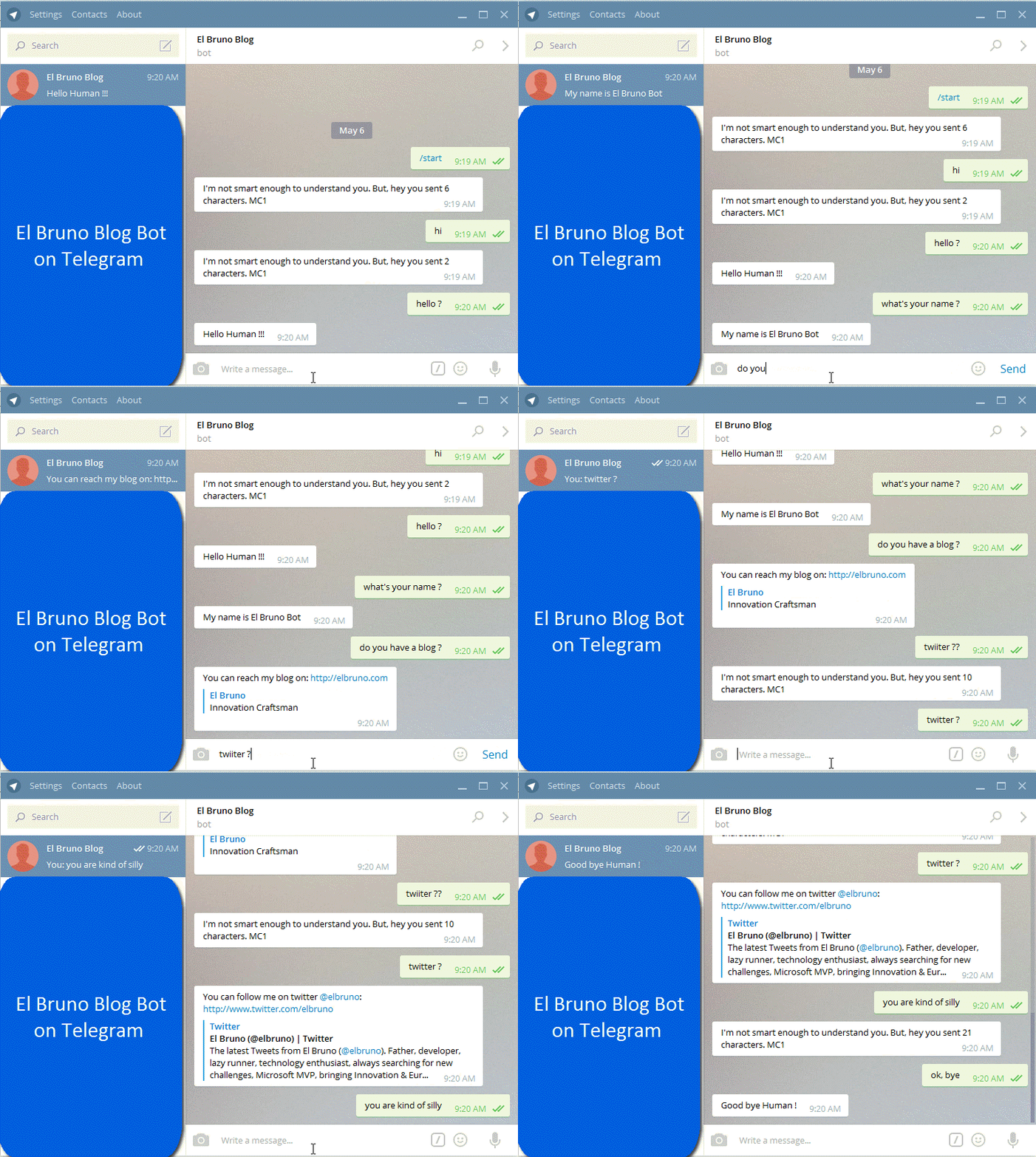
And I can finally have a “nice conversation” using telegram with my bot !

Like this one 😉
Greetings @ Toronto
-El Bruno
- El Bruno, (I) Hello World in Bot mode with Visual Studio 2015
- El Bruno, (II) Publish the bot to Azure and register the bot in Microsoft Bot Framework
- Bot Framework, home page
- Visual Studio Bot Project Template
- Microsoft Bot Framework Emulator
- Bot Skype Configuration
- Bot Facebook Configuration
- Bot Telegram Configuration
- Skype Bot portal
- MSDN, Using Visual Studio 2015 and Deploying your first web app to your FREE Azure Subscription

 El Bruno
Leave a comment