Hi !
Last week during Build 2016, Microsoft present a set of Artificial Intelligence APIs named Cognitive Services. These are the natural evolution of what we know as Project Oxford, and they include some interesting new features.
Even if some of the features are very similar, I think is good (for me) to write a couple of post related to the usage of the new features. So let’s start from the beginning: How to create an Azure Cognitive Service API and how to get the keys to be used in final apps.
The use of the APIs is free. You only need a Microsoft Account. If you don’t use Project Oxford before, you only need to activate these features, and later you can buy these services on the Azure Portal.
Important, if you already uses these services from Project Oxford, you need to select the option “Request new Trials”
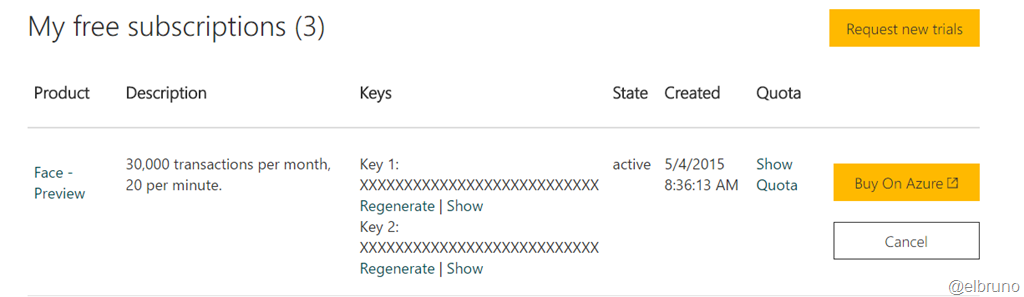
You’ll be redirected to the services page and then you need to agree the Microsoft Cognitive Service Terms and Microsoft Privacy Statement. And that’s it you are ready to use the services.

If you need to request a new quote or get new use keys, you can get these from the Azure portal.
First step is an easy one: search for “Cognitive Services” in the Azure Marketplace
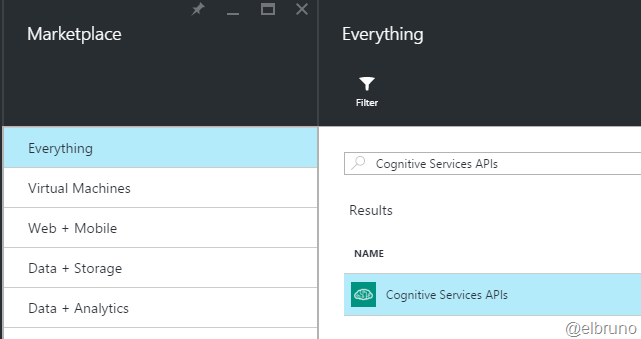
Now you can create a new Cognitive Services resource which will include one of the available services. In example, the Emotion API

At this time is important to complete the next steps, like price (go for free)

Also complete the resource group, the location and also accept the license terms.
So, after a couple of seconds you’ll get your Cognitive Services API created on your Azure subscription. When you access to the CSAPI, you can find some very useful information like the endpoint and the Keys to be used in your apps.
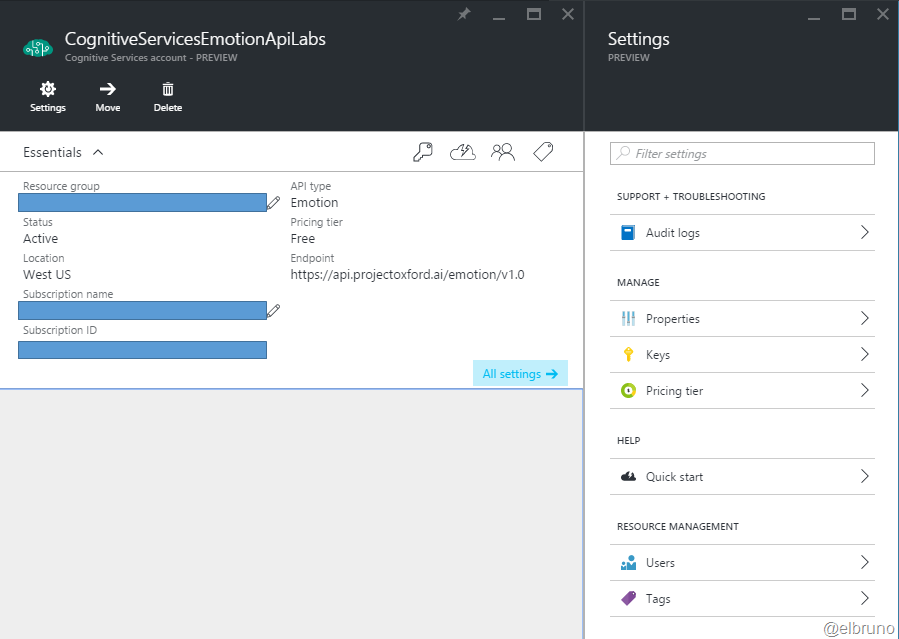
Of course keys are the important ones. Remember to copy Key 1 and Key 2

In next posts, I’ll go directly to some source code and some samples!
Greetings @ Toronto
-El Bruno
References
 El Bruno
Leave a reply to #CognitiveServices – Text Analytics API, detect language, sentiment and more using #Azure | El Bruno Cancel reply