Hola! Después del post anterior donde mostraba cómo suscribirnos a los eventos de click de los botones del Pebble, hoy voy a seguir un poco con el ejemplo, haciendo una app un poco más interactiva. Lo primero es agregar un par de imágenes que son las que utilizaremos en la app. Utilizando MetroStudio (excelente app con muchos ejemplos gratuitos de iconos, escribí aquí al respecto), he agregado la siguiente imagen, un png de 48×48 pixeles de tamaño. Solo con colores blanco y negro. He definido el identificador de este recurso como [FOOTBALL] 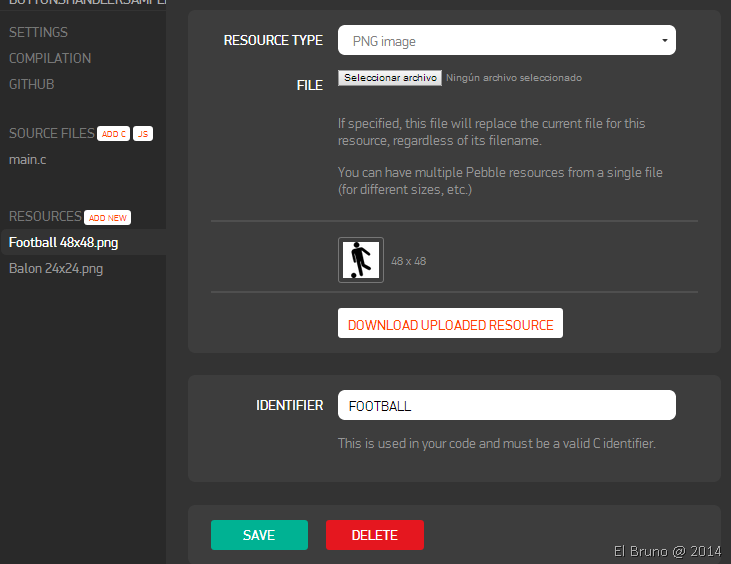 También he agregado otra imagen más pequeña, que es la que utilizaré como icono de la aplicación. En este caso, la imagen también es un PNG con colores blanco y negro, y de tamaño 24×24 pixeles.
  Para definirlo como imagen de la app en Pebble, accedemos al menu Settings y luego seleccionamos la imagen para la opción [Menu Image]
  Luego en el video veremos como queda en la app. Retomo un poco el detalle del post, la idea es agregar esta imagen en el centro del Pebble y utilizando los botones Up y Down, mover la misma hacia o hacia abajo. El código de la app final es el siguiente
En el mismo es posible ver lo siguiente:
- Defino bitmap y un bitmap layer (líneas 4 y 5) que son los que utilizaré para mostrar la imagen. En el handle_Init(74) inicializo y creo la imagen.
- Importante: la forma de referenciar el recurso que he agregado antes y que he llamado se hace uniedo el nombre del recurso al prefijo [RESOURCE_ID], el resultado es [RESOURCE_ID_FOOTBAL] en la línea 80.
- En el manejador de click del botonUp(36) o BotonDown (49), valido la posición actual del layer, y activo una animación para moverlo hacia arria o abajo.
- Las funciones on_animation_stopped (9), animate_layer (15) las copie de este post y la verdad que son las bases para la creación y movimiento del layer con la imagen
En el siguiente video es posible ver la app 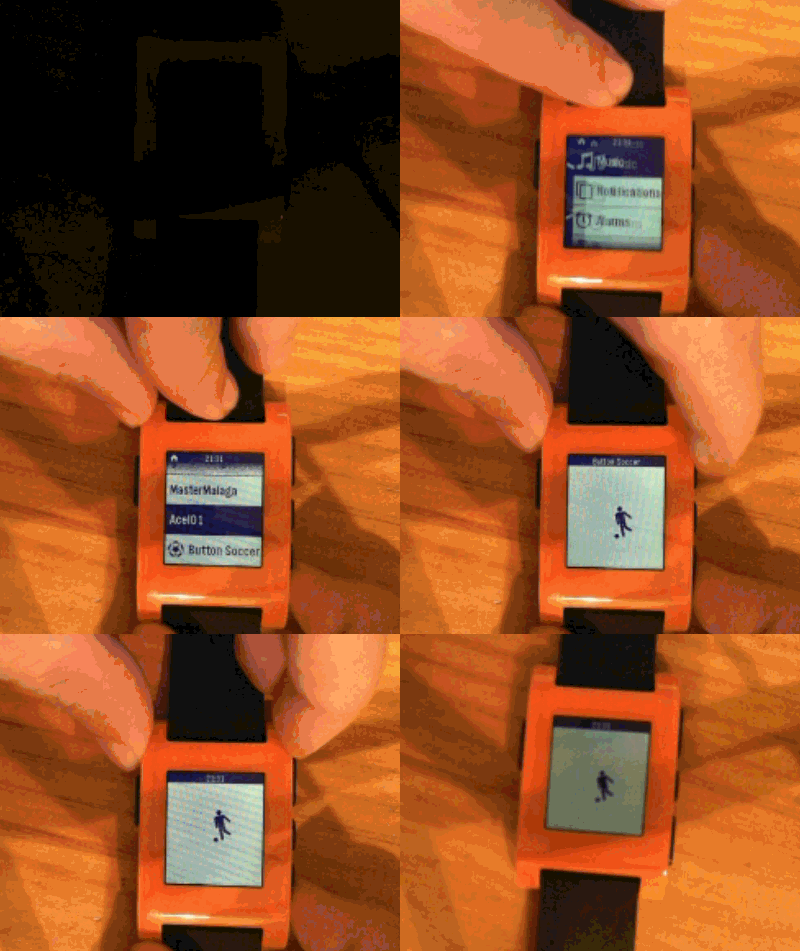 Saludos @ La Finca El Bruno
 |
 |
 |
 El Bruno
Leave a comment