
Hi !
I already shared how to create Virtual Environments using Anaconda, and also how to create shortcuts to use them directly in Windows Terminal (see references). This task is easy an amazing, however, at some point you may want to clean your environment.
That’s an easy task. I’m currently using Anaconda version 4.8.3. You can check your version with the command
conda -V
To show your virtual environments, you must use the command
conda info --envs
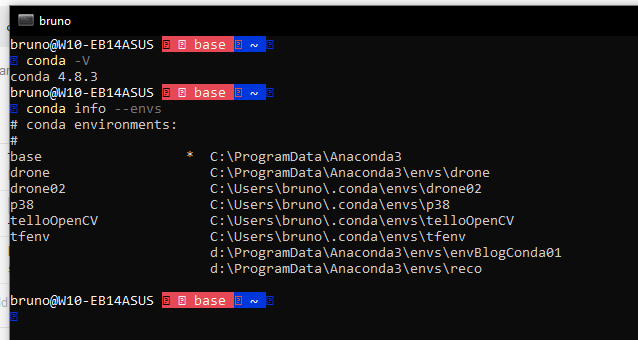
Before deleting any of this, I checked them and … they use some space.

As you can see in the previous image
- drone02, disk size is 2GB
- p38, disk size is 1.4 GB
- telloOpenCV, disk size is 2.6 GB
- tfenv, disk size is 1.76 GB
I didn’t even check the other virtual environments. Right now I’m only using 2 from the total of 6 on the list, so I’ll delete the non used ones.
To delete a virtual environment we must use the command
conda env remove --name ENVIRONMENT
And with a simple command like this, I can remove the unused ones
conda env remove --name drone02
conda env remove --name telloOpenCV
conda env remove --name tfenv

And, after this I get some space back to my disk!
Happy coding!
Greetings
El Bruno
More posts in my blog ElBruno.com.
More info in https://beacons.ai/elbruno
 El Bruno
Leave a comment