Hi!
Note: I use some help from an AI to write this post
🎥 Introduction
Today we’re diving into a fun and productive scenario: automatically generating architecture diagrams and technical documentation for your .NET Aspire applications based on the Host project definitions.
We’ll take a the example that is generated with the .NET Aspire Starter Kit and use GitHub Copilot, Mermaid, and Copilot Coding Agents to build an intelligent documentation flow.
👇 Watch this 8-minute walkthrough to see the process in action:
Spoiler: the final output looks like this:

🧩 Details
Let’s break it down step by step, showing how AI tools can help you create clean and complete architecture documentation for .NET Aspire projects.
🗺️ Step 1 – Prompting GitHub Copilot for Diagrams
We begin by describing our .NET Aspire solution to GitHub Copilot. The goal is to generate ASCII-based architecture diagrams directly from the service and container definitions in the Host project.
The output is surprisingly useful — a tree view of service dependencies, resources, and app flow.
https://github.com/elbruno/CopilotAspireArchitectureGeneration/blob/main/prompt-generatedoc.md
## GitHub Copilot Agent Prompt: Aspire Solution Analysis & Documentation

1. **Launch the current solution** (a .NET Aspire Host).
   - If the application requires a token, ask the user to perform the login before proceeding.

2. **Analyze the entire solution** (all projects, code, and configuration files in the `src` folder) to understand the overall goal and architecture.
3. **Analyze the AspireApp2.AppHost project** to generate an architecture diagram representing the solution's structure and service relationships.
4. **Create a detailed Markdown file. The file name must end with the current date and time in the following format: `SolutionOverview-yyyyMMdd-hhmmss.md`**
   - Where:
     - `yyyy` is the 4-digit year
     - `MM` is the 2-digit month
     - `dd` is the 2-digit day
     - `hh` is the 2-digit hour (24-hour format)
     - `mm` is the 2-digit minute
     - `ss` is the 2-digit second
   - For example: `SolutionOverview-20250711-123022.md`
   - Explains the goal and purpose of the solution.
   - Describes the architecture, main components, and their interactions.
   - **Includes the generated architecture diagram as a separate section in the documentation file. The architecture diagram must be in ASCII format,
   - Provides as much detail as possible about the solution’s design, features, and intended use.
   - **The generated documentation must be saved in a `docs` folder at the root of the repository. If the `docs` folder does not exist, it must be created.**
5. **(Optional, only if user confirms)**: Use Playwright MCP server tools to:
   - Capture a screenshot of the Aspire dashboard.
   - Capture a screenshot of the main frontend page.
   - If Playwright MCP server tools can't launch the app, ask the user for the correct Aspire launch URL. By default, use: https://localhost:17187
   - **All screenshots must be saved in the `docs/screenshots` folder. If the `docs/screenshots` folder does not exist, it must be created.**

**Instructions:**
- Ensure the markdown is well-structured, with sections for Overview, Architecture, Components, and Screenshots.
- Use the screenshots to visually illustrate the dashboard and frontend.
- Be thorough in your analysis and explanations.
🎨 Step 2 – Move to Mermaid Diagrams
Next, we ask Copilot to convert the ASCII diagrams into Mermaid syntax, which can render beautiful, modern diagrams.
To visualize the diagrams inside Visual Studio Code, we run a local Mermaid MCP server, available here:
🔗 https://github.com/hustcc/mcp-mermaid
This server supports Mermaid rendering directly within your dev environment — super useful for rapid iterations.
🤖 Step 3 – Let GitHub Copilot Coding Agent Do the Work
Now comes the fun part.
We use GitHub Copilot Coding Agent to automate the whole process:
- It reads the Host project definitions
- Parses and identifies the relationships
- Generates both Mermaid and ASCII diagrams
- And wraps everything into a Markdown file
Once Coding Agent is done, we can check a PR similar to this one:
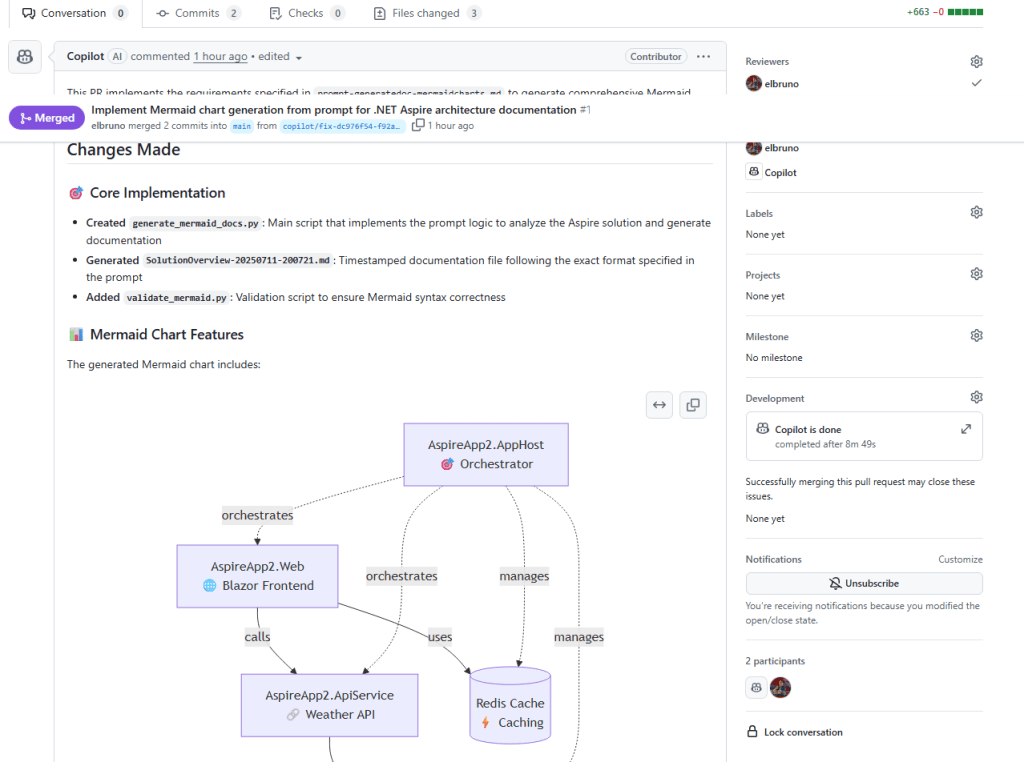
You can read more about this powerful tool here:
🔗 https://docs.github.com/en/enterprise-cloud@latest/copilot/concepts/about-copilot-coding-agent
To get started with Coding Agents in VS Code:
🔗 https://code.visualstudio.com/updates/v1_102#_start-a-coding-agent-session-preview
📸 Bonus: Add Screenshots with Playwright MCP Server
As a bonus, we used the Playwright MCP Server to capture screenshots of the app (e.g., the Shopping Cart UI), and Copilot Agent automatically included them in the documentation.
That’s next-level documentation quality with zero effort.
✅ Conclusion
This scenario shows what’s possible when combining modern developer tools:
- 🧠 GitHub Copilot for prompts and code generation
- 🤖 Copilot Coding Agent for automation
- 🖼️ Mermaid for architectural visuals
- 🎭 Playwright for UI screenshots
In just minutes, we went from Aspire Host definitions to full, readable, and visual documentation. This not only saves time — it also promotes consistency across teams and environments.
Whether you’re working on microservices, APIs, or Aspire projects — this is a workflow worth trying.
📚 Resources
- 💻 Sample Repository
https://github.com/elbruno/CopilotAspireArchitectureGeneration - 🧠 MCP Mermaid Server
https://github.com/hustcc/mcp-mermaid - 🚀 GitHub Copilot Coding Agent Overview
https://docs.github.com/en/enterprise-cloud@latest/copilot/concepts/about-copilot-coding-agent - ▶️ Start a Copilot Agent Session in Visual Studio Code
https://code.visualstudio.com/updates/v1_102#_start-a-coding-agent-session-preview
Happy coding!
Greetings
El Bruno
More posts in my blog ElBruno.com.
More info in https://beacons.ai/elbruno
 El Bruno
Leave a comment