Hi !
Ok, more tips of video editing using PowerPoint. Please read my previous post for the context on how to use these scenarios.
And, disclaimer: even if we can do this, Microsoft PowerPoint is not the best tool to do this.
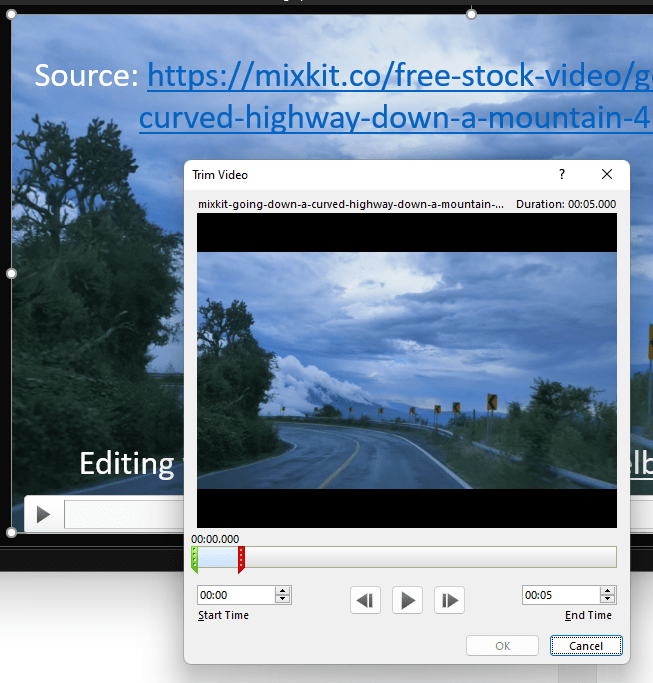
Trim Video content
1st scenario is about selecting specific start and end time from a video. Once the video is embedded in a Slide, we can right click and select the Trim option. In the following image, I selected the 1st 5 seconds of the sample video.
Concatenate 2 videos
This is easy, just add one video per slide and then export the full powerpoint file as video. In this sample I’m using these 2 free videos from mixkit.com:
Adding transitions between 2 videos
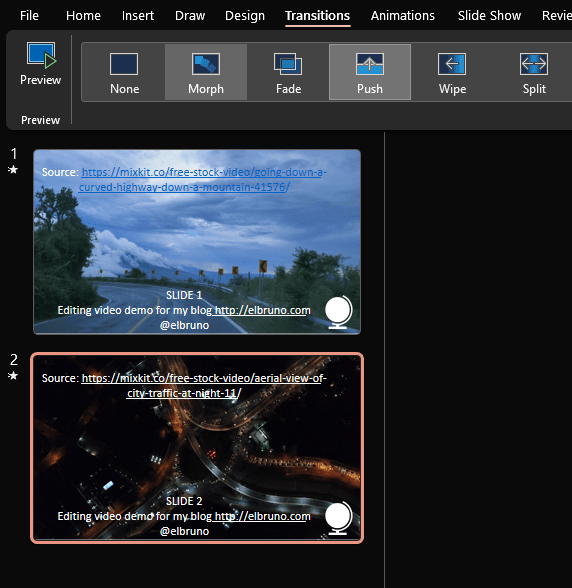
And now, let’s use some amazing PowerPoint features: let’s add a transition, in the same way that we do using slides.
In the following sample:
- I use the 2 videos in 2 slides
- Each video only shows the 1st 5 seconds of the full video
- The transition between the 2 videos is … Slide UP !
Super cool !
Happy coding!
Greetings
El Bruno
More posts in my blog ElBruno.com.
More info in https://beacons.ai/elbruno

¿Con ganas de ponerte al día?
En Lemoncode te ofrecemos formación online impartida por profesionales que se baten el cobre en consultoría:
- Si tienes ganas de ponerte al día con Front End (ES6, Typescript, React, Angular, Vuejs…) te recomendamos nuestros Máster Front End: https://lemoncode.net/master-frontend#inicio-banner
- Si te quieres poner al día en Backend (stacks .net y nodejs), te aconsejamos nuestro Bootcamp Backend: https://lemoncode.net/bootcamp-backend#bootcamp-backend/banner
- Y si tienes ganas de meterte con Docker, Kubernetes, CI/CD…, tenemos nuestro Bootcamp Devops: https://lemoncode.net/bootcamp-devops#bootcamp-devops/inicio
 El Bruno
Leave a comment