

In this blog post I’ll show how easy it is to provision Microsoft Teams teams using Microsoft Lists and Power Automate. Creating a Teams team is super simple from the Teams client, this post is not intended to replace that functionality, rather this has been developed with a PMO (project management office) team managing multiple projects from a centralized List in mind.
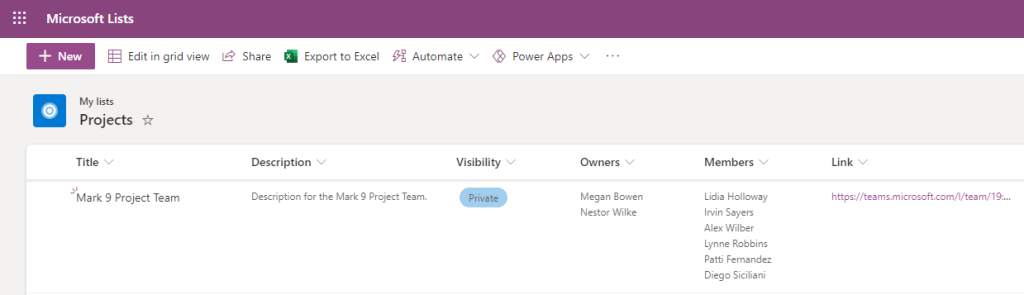
Our demo list, called Projects, has the following schema:
| Column name | Column type |
| Title | Title used to store the project name. |
| Description | Single line of text used to store the project description. |
| Visibility | Choice with the following options: “Private” and “Public”. Indicates if a team should visible to non-team members. |
| Owners | Person or Group with Allow multiple selections enabled. |
| Members | Person or Group with Allow multiple selections enabled. |
| Link | URL used to store the web link to the newly created Teams team. |
Create a new Flow from the
View original post 381 more words
 El Bruno
Leave a comment