
Hi !
I’m a big fan of Windows Terminal, and is my default external terminal in Visual Studio Code. However, today I learned a very cool tip:
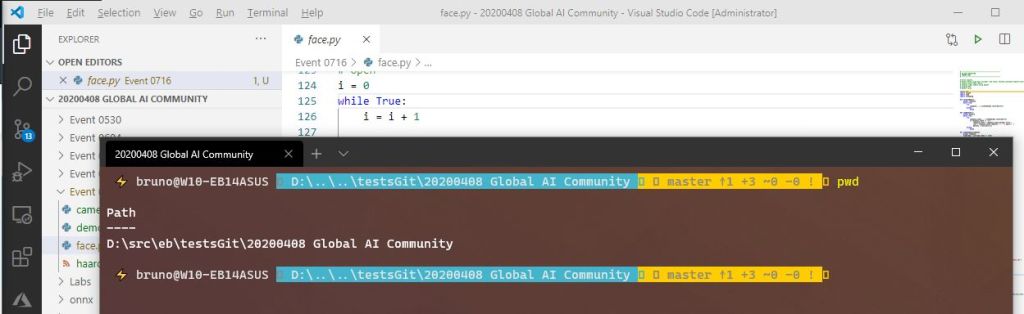
Launch an external Windows Terminal from Visual Studio Code, and the terminal will open using the path of the current Workspace in VSCode.
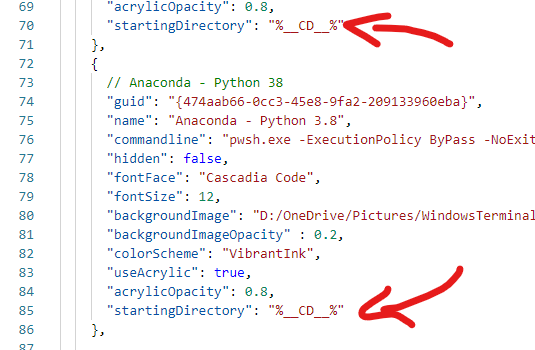
Fabian explains the full scenario (see references), however the magic is to add the “startingDirectory = %__CD__%” in the profile definition in Windows Terminal Settings. In example, line 14:
{
      // Anaconda - Drone 02 Virtual Environment
      "guid": "{A87154C9-7846-479F-88CE-2C29BE4653CC}",
      "name": "Anaconda - Drone 02 VEnv",
      "commandline": "pwsh.exe -ExecutionPolicy ByPass -NoExit -Command & 'C:\\ProgramData\\Anaconda3\\shell\\condabin\\conda-hook.ps1' ; conda activate 'C:\\ProgramData\\Anaconda3' ; conda activate drone02; cls ",
      "hidden": false,
      "fontFace": "Cascadia Code",
      "fontSize": 12,
      "backgroundImage": "D:/OneDrive/Pictures/WindowsTerminalBackgrounds/Ava_Wallpaper_Logo_Center_Thermal_Lat7270_5470.png",
      "backgroundImageOpacity" : 0.2,
      "colorScheme": "VibrantInk",
      "useAcrylic": true,
      "acrylicOpacity": 0.8,
      "startingDirectory": "%__CD__%"
    },
Awesome ! To open an external Terminal, press
Ctrl + Shift + C
and that’s it!
Happy coding!
Greetings
El Bruno
More posts in my blog ElBruno.com.
More info in https://beacons.ai/elbruno
 El Bruno
Leave a comment