Hello!
One of the things I like most about Windows Template Studio is the ability we have to add new elements to an App dynamically, once we have worked with it. If you do not know Windows Template Studio, I recommend you to see the Getting Started Video (link). It’s a 90 seconds video where you can understand what is necessary to create a project of a Windows Store App with the Features you need.
Well, if you have already been working on a project and you need to add a new view, the Windows Template Studio plugins make it very easy for us.
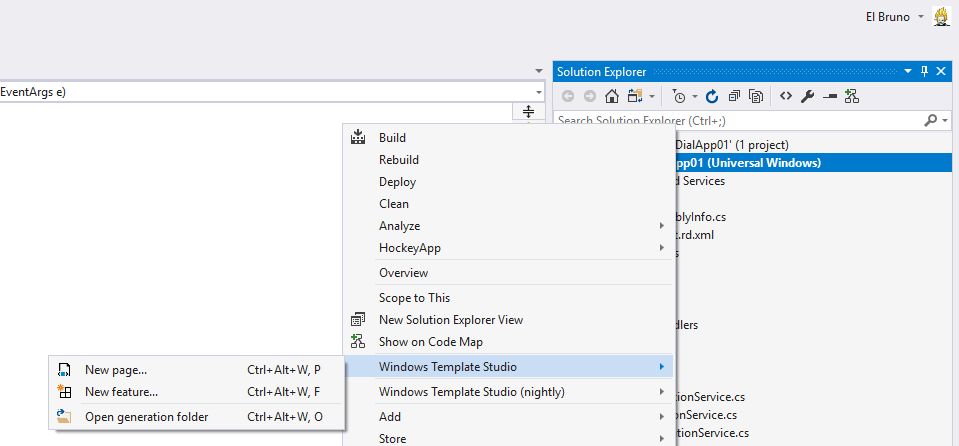
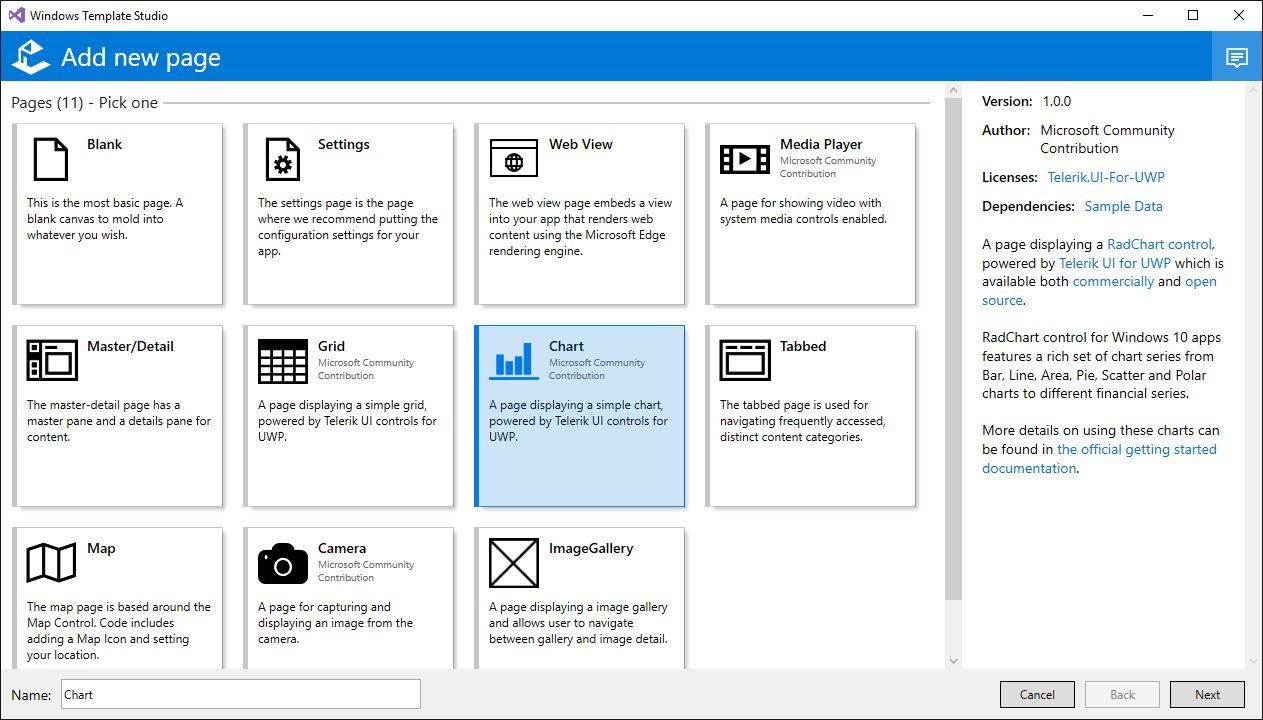
We have a list of templates with different options to add. For example, I will select a view with a graphic.
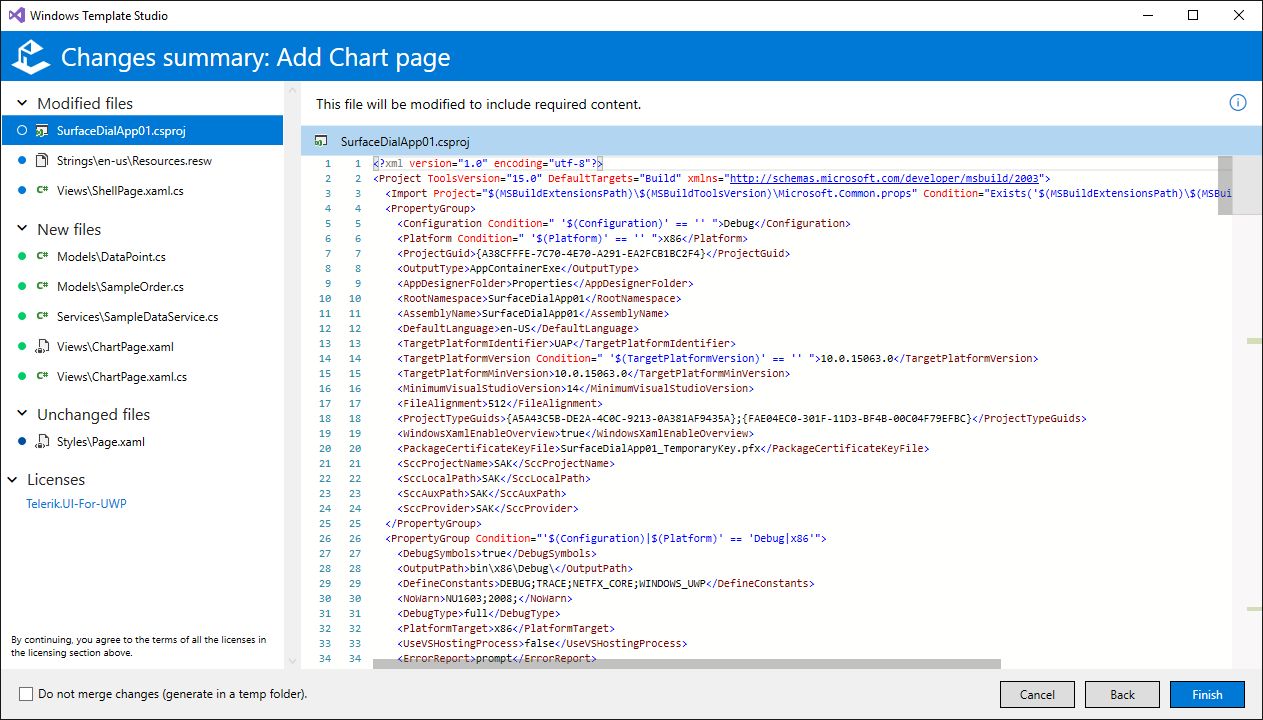
In the next step of the wizard, we will see the new files that will be added to the project, and those that will be modified. It is interesting to note that the assistant will try to make a merge of the changes, although we also have the option of making the change manually in the modified files.
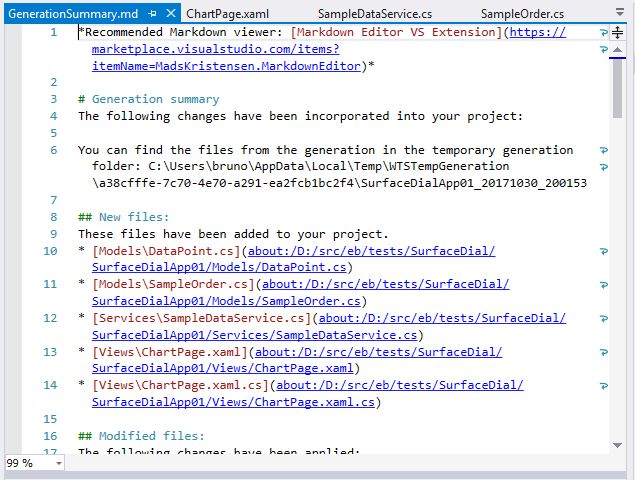
Once the process is finished, we will see a report with the list of changes applied. According to the type of element that we have added, we will also see specific links to work with these elements. For example, in the case of graphics we work with Telerik elements.
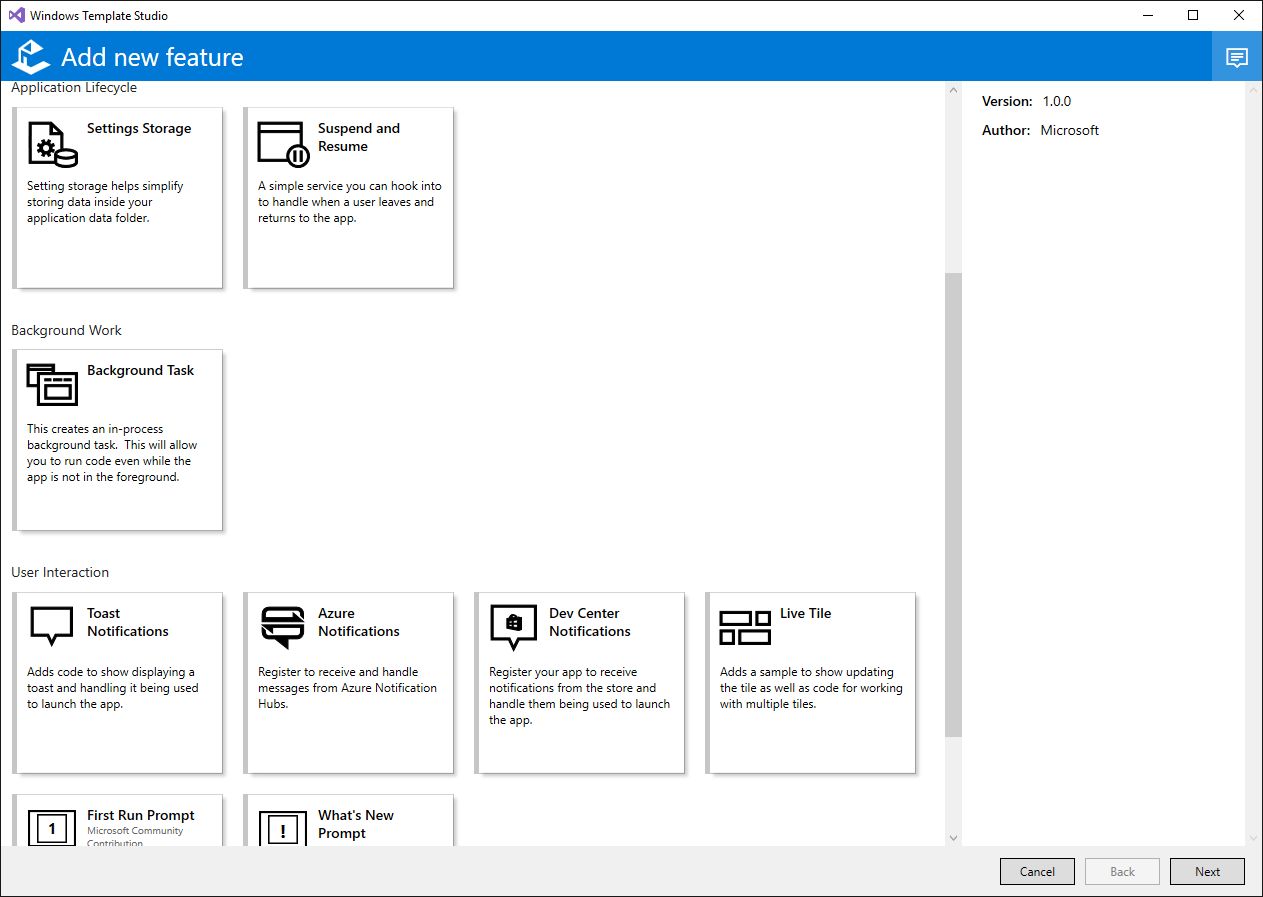
Finally comment that we can also add non-visual elements to a UWP project. As, for example, capabilities to have Toast Notifications, interaction with Live Tiles, messages to show in the First Run or in updates of the App and much more.
Windows Template Studio is open source, meaning that all the features and how to implement them can be found on GitHub. And if you need any extra functionality, the WTS extension way is very well documented.
Happy Coding!
Greetings @ Toronto
El Bruno
References
- Github, Windows Template Studio
- Channel9, Getting Started with Windows Template Studio
 El Bruno
Leave a comment