Hi !
So, I’m learning again some cool features on the test versions of Windows 10. In the past few days, I got stock with a home made project and I get to a point where I need a new clean install of everything. And that’s a shame because one of the coolest features that I want to try these days is PROJECT CENTENNIAL.
Project Centennial allows us to bring / move our existing Desktop applications to the universal .appx packaging format as a first step to move our application to the Universal Windows Platform.
So once our desktop apps are “moved” to an UWP, we can reuse all the cool features of Win10 apps. And, of course there are some other constraints, like restrictions to the access to the File System or no elevation and perform admin tasks. So that’s a good idea, but let’s deep into this.
In example, in a couple of blogs I read something similar to this
it’s straightforward to add additional functionality over time, gradually migrating existing Win32/.NET code to move functionality into the app container. Running your code in the app container benefits the security of your user’s machine, and at the end of the migration results in a UWP app that can run on PCs, Phones, IoT devices, Xbox One and HoloLens.
And we need to be careful here, you are not going to be able to use Notepad++ in a Raspberry Pi (not in the easy way). Let me tray to explain this.
There are several integration modes, and this post have a great chart about this.
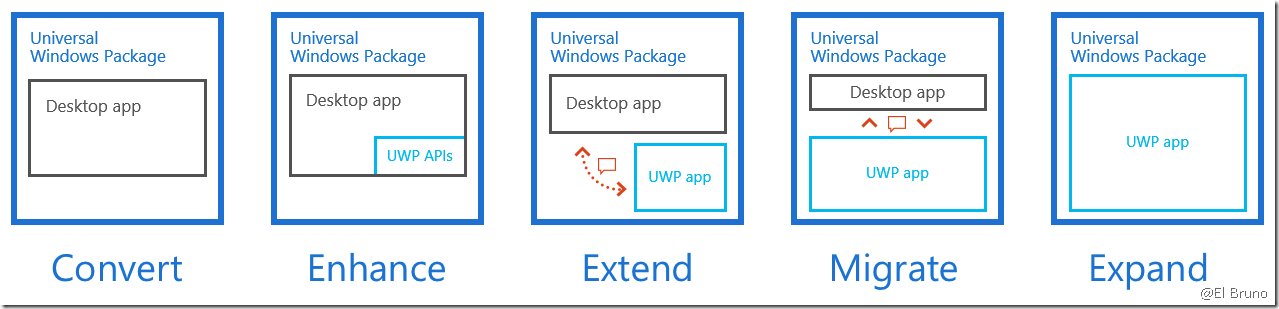
- Convert – Create an .appx deployment package for your desktop application
- Enhance – Call new UWP APIs from your desktop application
- Extend – Add new functionality, such as UWP App Services and Background Tasks
- Migrate – Move more code into the app container part of your package, such as a XAML UI frontend
- Expand – Finish the migration of all code to the app container and expand your reach to all Windows devices
If you go for the options 1, 2, 3 or 4, that’s mean that your Win32 app will be a Desktop App and it will run under a UWP “host”, so forget to run your Win32 app in an XBox or a IoT Device. However this is interesting because is a natural step to start to take advantage of the features of an UWP.
You must also need to think in the update experience. As a UWP if you release an update, your app will be downloaded all over again for the new version. I was working in some cool “app self update” features in the past for big app sizes. The main idea behind these is to avoid the distribution of a new version of a 50MB app in a 200000 users private network … IT people will know the pain.
Project Centennial is a great idea and I really like it because is not the usual “migrate or nothing” approach. We can start hosting our Desktop app in a UWP, and create a migration plan which will be good for the final user and also for us to have a full UWP at the end (and is at that moment where you will get the complete set of benefits of UWP apps)
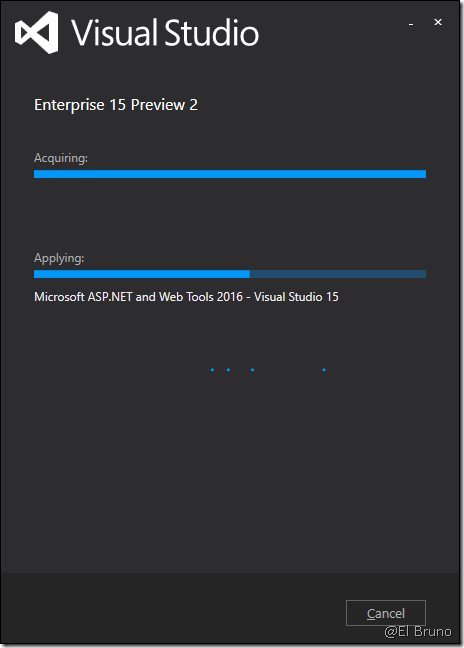
So, I’ll wait until I finish again the installation of Visual Studio 15 Preview 2 to write a post on some more interesting dev features!
Greetings @ Home
-El Bruno
References
- Windows Dev Center, Desktop App Converter Preview (Project Centennial)
- Channel 9, Project Centennial”: Converting your Classic Windows App (Win32, .Net, COM) to a Universal Windows App for Distribution in the Windows Store
- Windows Blog, Bringing your existing desktop apps to UWP
- Download Visual Studio 15 Preview 2
 El Bruno
Leave a comment