Hello!
After yesterday’s Hello world, today I’l write a post on a more friendly way to create Garmin apps. The Garmin Development team, has chosen MonkeyC as Development language and Eclipse as IDE for development, and the truth that fit the development environment is fairly simple.
Setup Development Environment
First we must download a version of Eclipse Luna. Choose the option for Java Developers, in the first step of the installer.
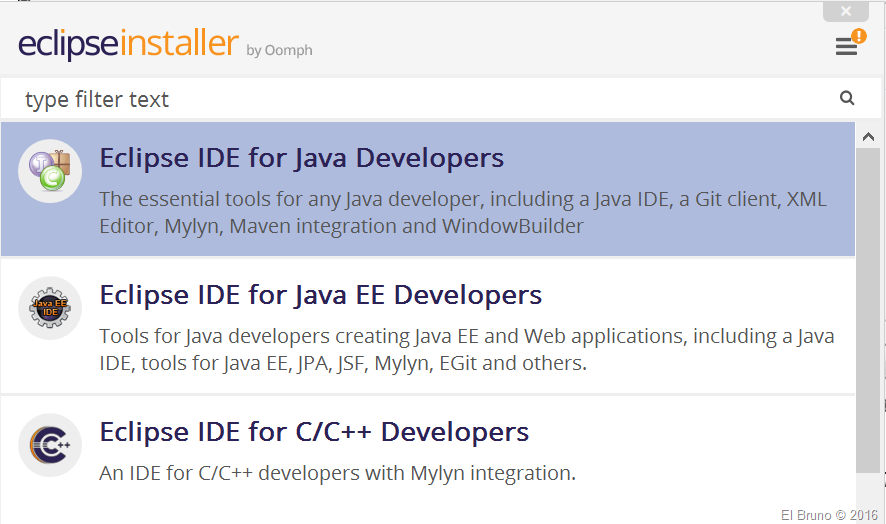
Once we have installed Eclipse, we must add the extension to work with Garmin Apps projects. So we access to the menu “Help / / Install new Software”

We must add the software from
http://developer.garmin.com/downloads/connect-iq/eclipse/:
Once added the URL we should add the tools of Connect IQ
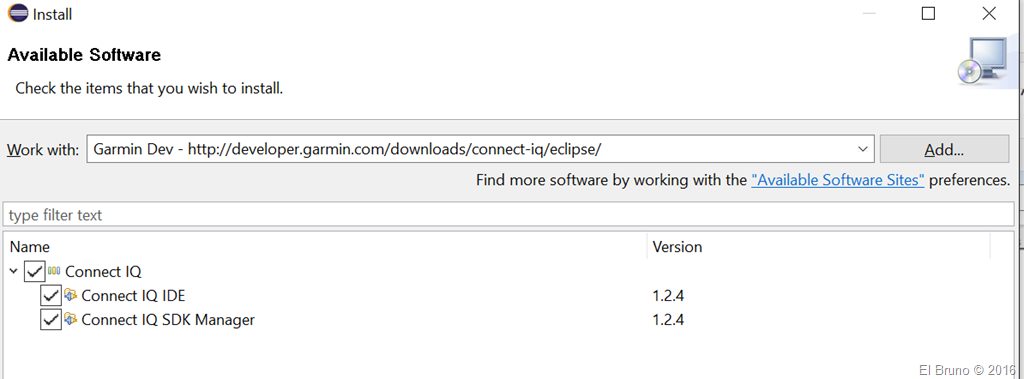
We accept the EULA, restart Eclipse and now is time to configure the location of the Connect IQ SDK in Eclipse. In the “Windows / / Preferences” menu select the option Connect IQ and the same configure the location of the SDK,
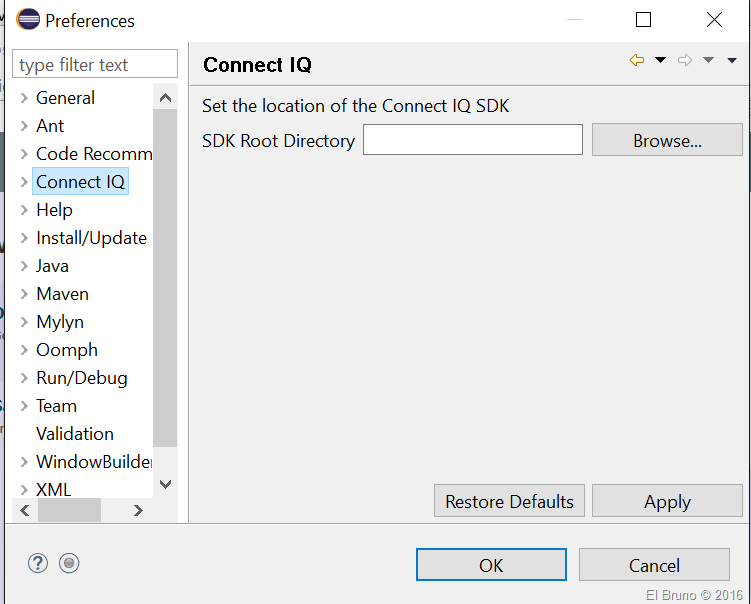
Important: You must select the location Root of the SDK, not the directory BIN, for example “C:\Garmin\connectiq-sdk-win-1.2.4”
My First App, Hello World !
Now we can now create our first project for a Garmin app. Let’s start with “File / / New Project” and then select “Connect IQ / / Connect IQ Project”
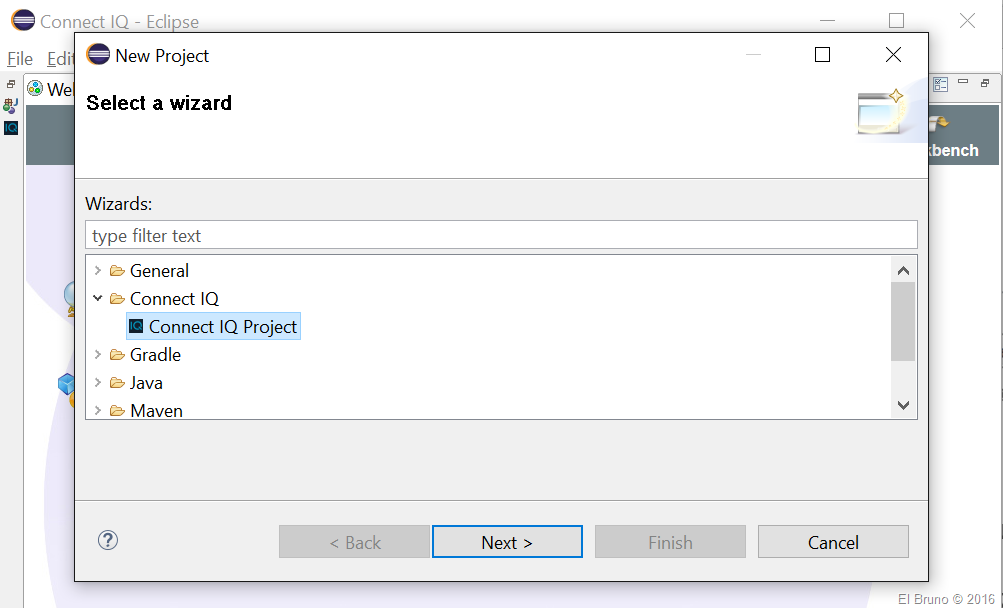
After you define a name for the App, comes to define the type of app. There are 4 options
- Watch Faces – These replace the main watch face and are the home screen of the watch.
- Data Fields – Data fields run within Garmin activities. They allow developers to compute values based off of the current activity, such as running, biking, etc.
- Widgets – Widgets are full screen pages that can be embedded into the main page loop. They are loaded when brought on-screen and shut down when the user switches to the next widget. Widgets will timeout and automatically shutdown after a device specific period of inactivity.
- Wearable Apps – Started from the action list, wearable apps can be used to implement use cases like third party activities, games, and other user-initiated actions. Apps push a page onto the UI and exit when the user backs out of the last page of the page stack. While running, the app has full control of the UI.
For this sample I will create a WatchFace app for my Garmin Forerunner 235
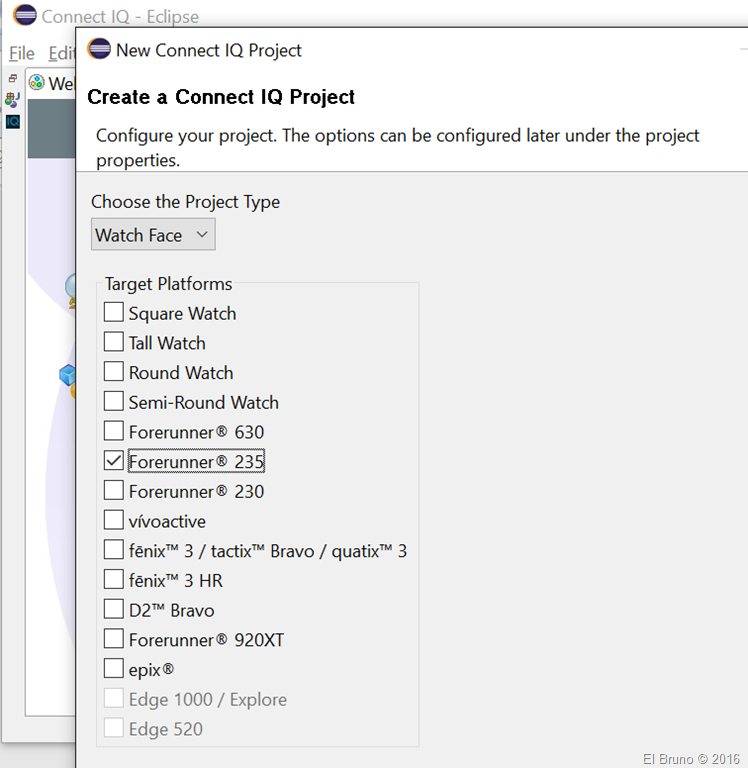
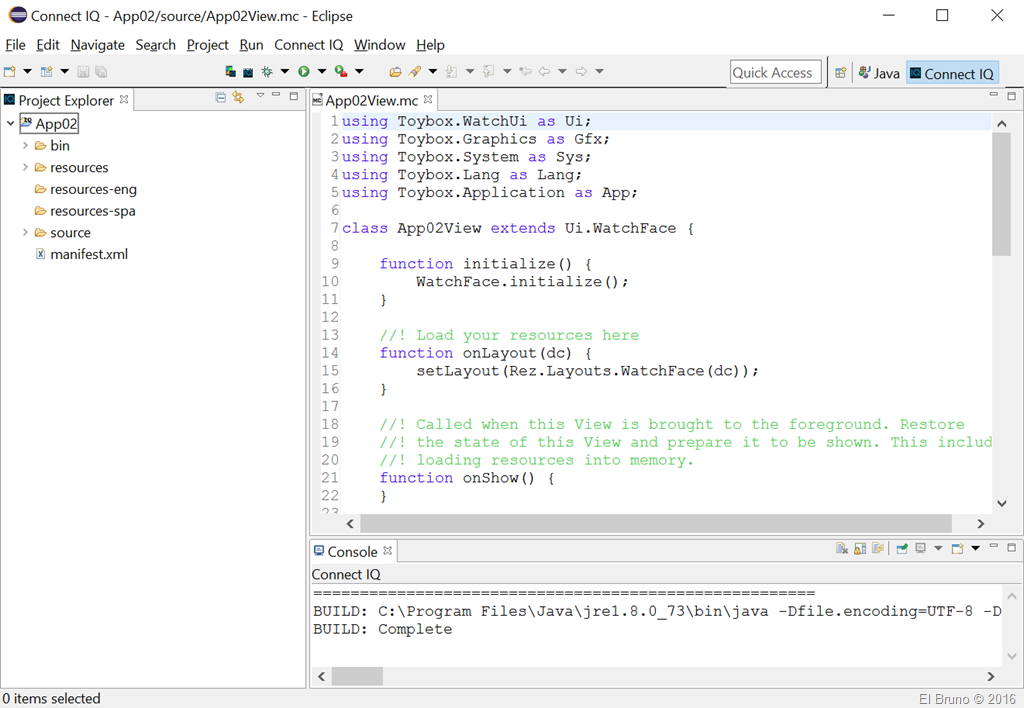
There is a couple more extra options to choose, like the WatchFace type and the supported languages. And now we have a minimmun set of code to be build and run Eclipse for Garmin Connect IQ App
In the meny “Run // Run Configurations” we add some options to build, and run the app in the emulator.
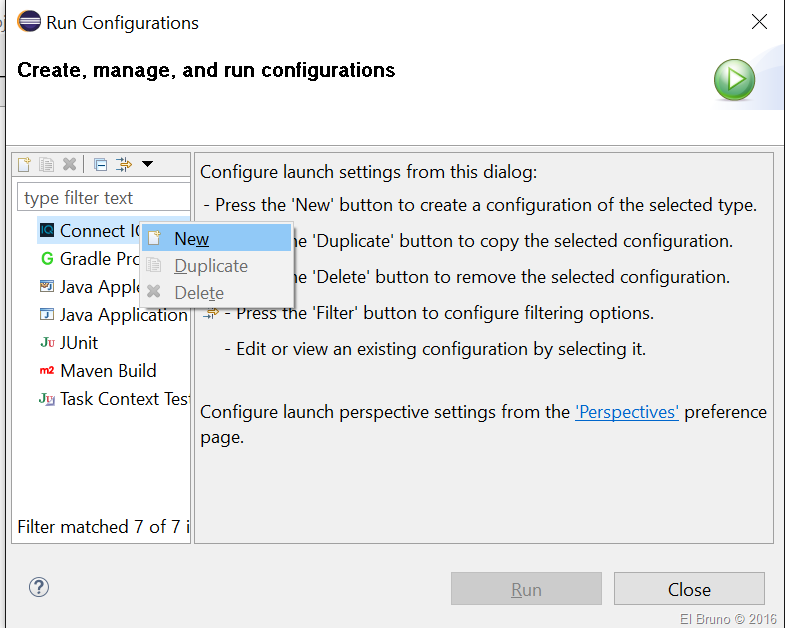
So, after we create this new build configuration we can run the app. In the next image, you can see the emulator running the app, displaying my name and also the time in a simple way (line 42)

So that’s it as starting sample. More in the next posts !!!
Greetings @ Toronto
-El Bruno
References
- Download Eclipse Luna
 El Bruno
Leave a comment