
Hola!
Azure Mobile Engagement is a platform that is offered as SaaS (software as a service) which allows
- Analyze the user behaviors in mobile applications
- Segmenting users in real time and history analysis
- Analyze the users by functionality or by behavior
- Interact with users through notifications and other messaging services
Azure Mobile Engagement does not support Windows 10 Universal Windows Apps yet.

I know the technology a little, so I got an idea on how to use Mobile Engagement in a Windows 10 app, so I run a couple of successful tests.
Tutorial
The official tutorial for Developers clearly explains the steps to follow to create an Windows 8 application integrated with this service. I have summarized them, and put some special attention to the steps that are specific to Windows 10.
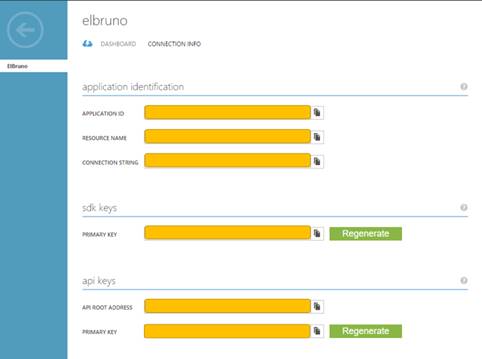
5. To test Azure Mobile Engagement, we will use a Universal Windows App. The template “Navigation App” has several sample determined navigation pages, so is a good choice for this demo.
6 I will create an application of this type in Visual Studio 2015, called “NavigationApp1”
7. In the application manifest, you must enable access to the internet
8. The next step is to install the package NuGet for Mobile Engagement.
9. Add it to our project with the command [PM > Install-Package MicrosoftAzure.MobileEngagement] or with a search by name.
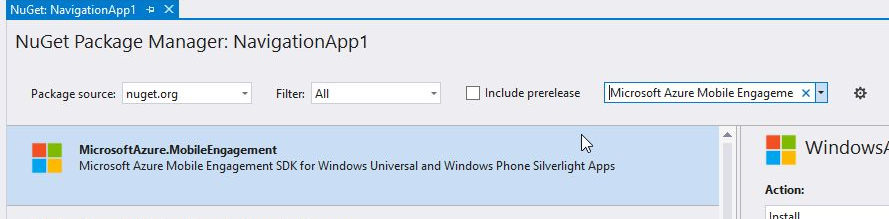
10. So far, is the same as in a Windows 8 Universal application. The main issue is that Windows 10 applications are not supported yet, so what we will do is to slowly bring what is configured in Windows 8 Windows 10.
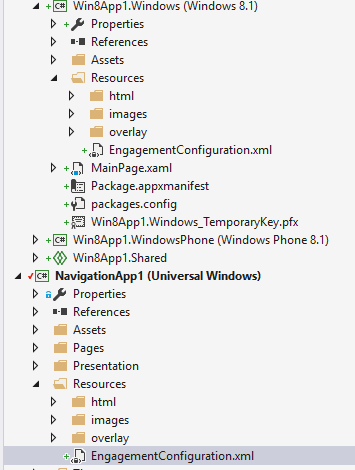
11. When you add an app Windows 8 NuGet package, you’ll see that you added a folder called “Resources”, we must copy it to our app Windows 10.
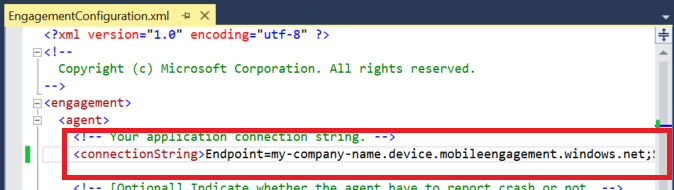
12. Then, following the MSDN tutorial, we complete the connectionString in our app Windows 10.
13. To initialize the Azure Mobile Engagement monitor, we will modify the App.cs class. In this one, initialize agent in OnActivated() (line 21) and OnLaunched() (line 27) events
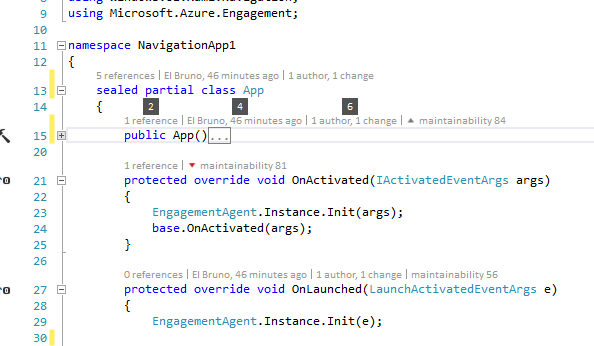
14. The next step is to change our application pages to be of type [Microsoft.Azure.Engagement.EngagementPage]
15. Change the XAML definition
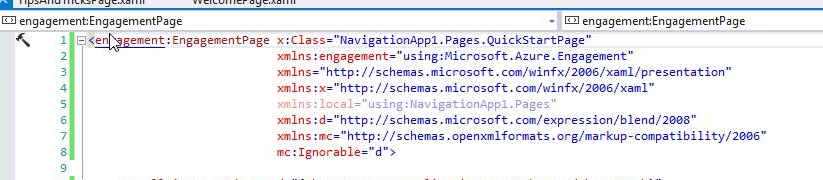
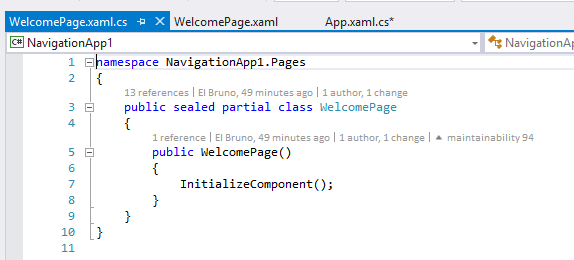
16. And, of course, also the CS. I personally like to remove the base type since it is already defined in the XAML.
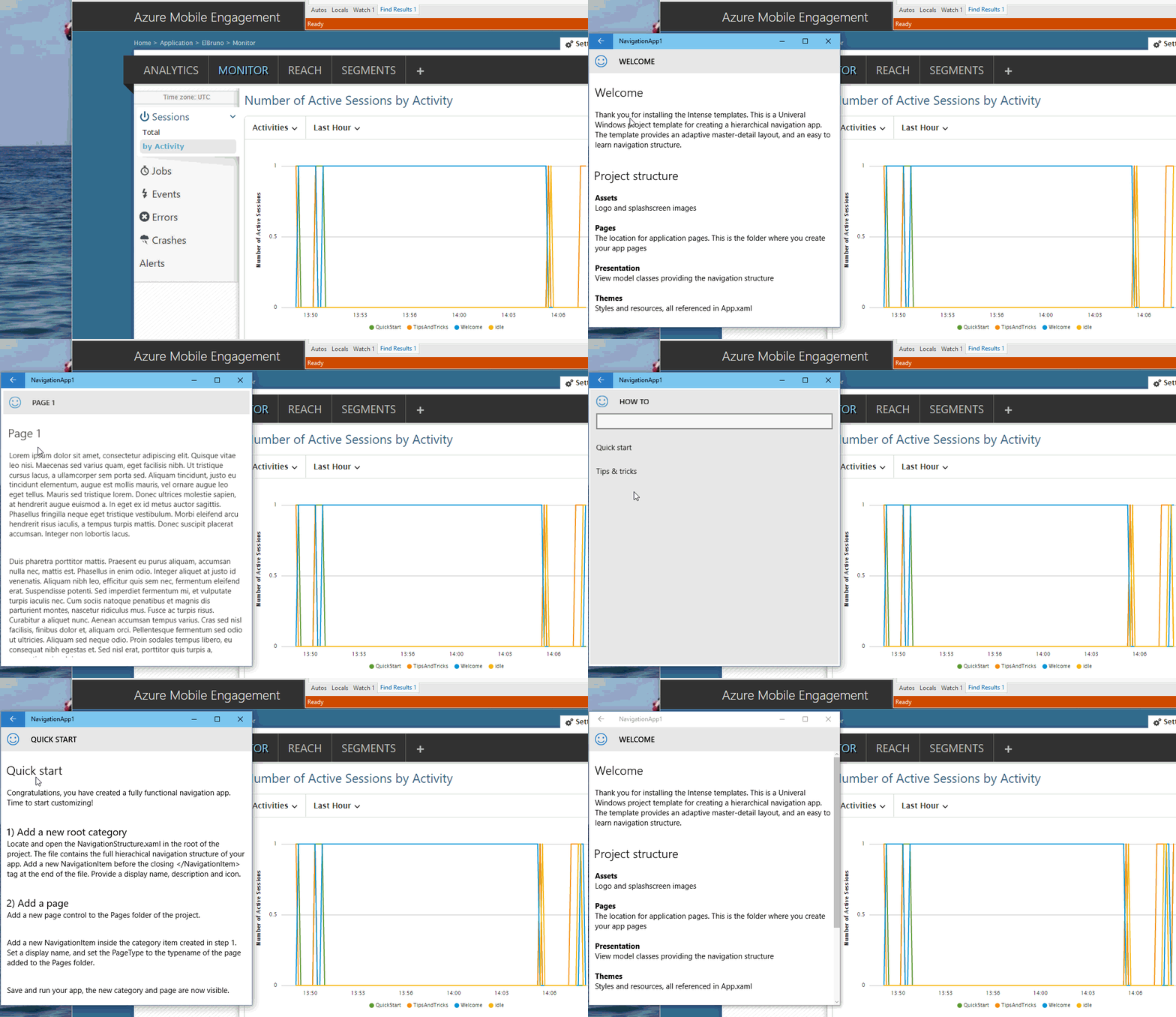
17. DONE !! Now we can launch our application and see it running with realtime monitoring of Azure Mobile Engagement.
The following video shows how at the time of sailing in local example app, we can see real-time statistics on the application and the views selected in the same.
Saludos @ Madrid
/El Bruno
References
– Azure Mobile Engagement Overview https://azure.microsoft.com/en-us/documentation/articles/mobile-engagement-overview/
– NuGet Microsoft Azure Mobile Engagement https://www.nuget.org/packages/MicrosoftAzure.MobileEngagement/
– Get started with Azure Mobile Engagement for Windows Universal Apps https://azure.microsoft.com/en-us/documentation/articles/mobile-engagement-windows-store-dotnet-get-started/
– Imagen https://en.wikipedia.org/wiki/Argentina_national_rugby_union_team
 El Bruno
Leave a comment