Hello!
While the Pebble community is not very friendly with Microsoft tools, that does not mean that we can’t use them to create our apps. Here you can see several entries in the Pebble Developers Forum talking about Pebble with WP integration, the use of Visual Studio, and other topics.
A development environment (IDE) is quite complex, and while CloudPebble is a very good option, however Visual Studio is the best IDE (sorry fan boys, etc. etc. etc., is matter of taste). So I’m going to show a series of steps that allow the basics of a Pebble project in Visual Studio.
Important: in this case, what I will do is starting a project with a created valid .c file in CloudPebble .
1. download the SDK for Pebble Linux from here. Yes, you read well, the SDK for Linux
2. unzip it, for this example I use the location “E:\srcElBruno\Tests\Peeble\PebbleSDK-2.1.1\”. The important path is “E:\srcElBruno\Tests\Peeble\PebbleSDK-2.1.1\Pebble\” which is where you will find all the resources of compilation of Pebble.
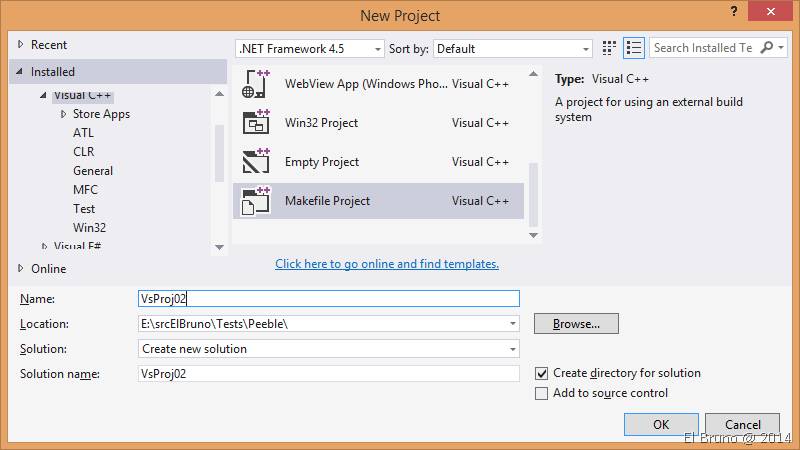
3. in Visual Studio 2013, creating a Visual C++ project / Makefile Project
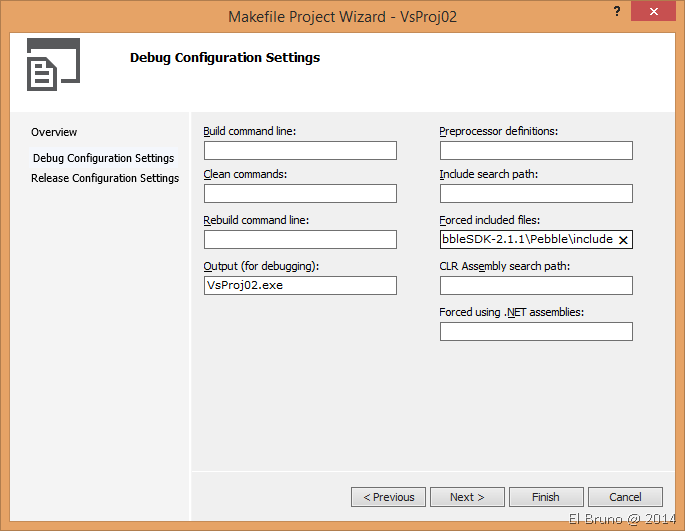
2. in the 2nd step of the wizard, complete the value of “Forced included files” with the path of the Pebble “E:\srcElBruno\Tests\Peeble\PebbleSDK-2.1.1\Pebble\include” #included
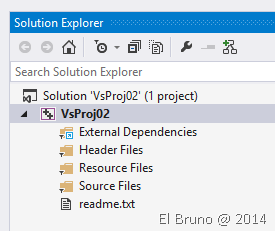
3. finish the Wizard, it must create a project vacuum with a structure similar to the following image.
Note: If you want to try the configuration is OK, you can compile the project and expect a “Succeeded”

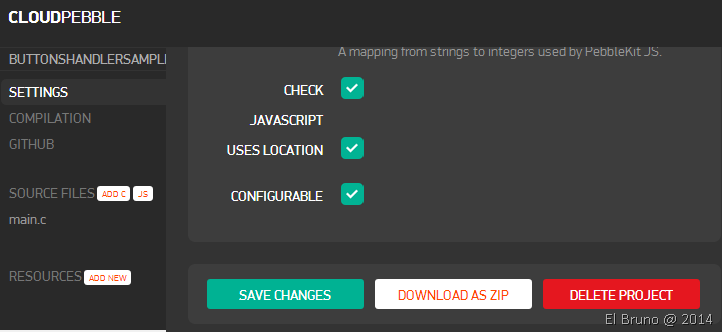
4. in this case, I will continue my example from the previous post, I made with CloudPebble. In the project settings, we must download the same with the option “Download as ZIP”.
5. Once downloaded, within the zip files of our project .c can find within the same Pebble project, and inside the “src” folder files.

6. the next step is the most obvious, adding an existing file in our C++ project, pointing to the file .c that we have downloaded from CloudPebble.
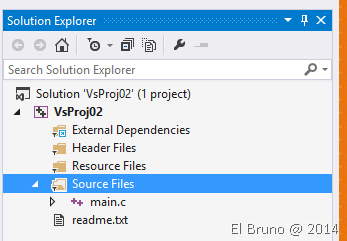
7 compile and error! Our project still does not take the .h correctly.
8. This step is simple, open the project properties and sail towards “Configuration Properties / / VC ++ Directories” and select “” “General / / Include directories”
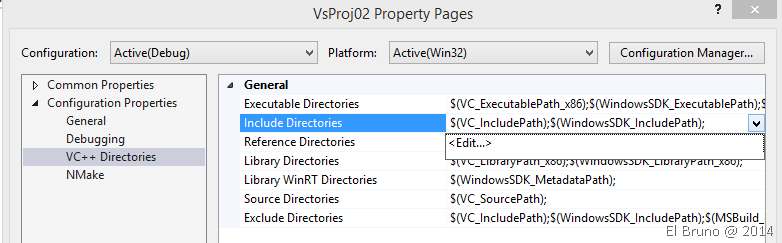
9 edit this option and add the directory that configure steps back.

10. now we have our ready IDE!
The important thing in this step is that we fear, intellisense, refactoring, navigate to definition capabilities, and all the other options that we already know Visual Studio 2013. The following video shows a quick overview of these features
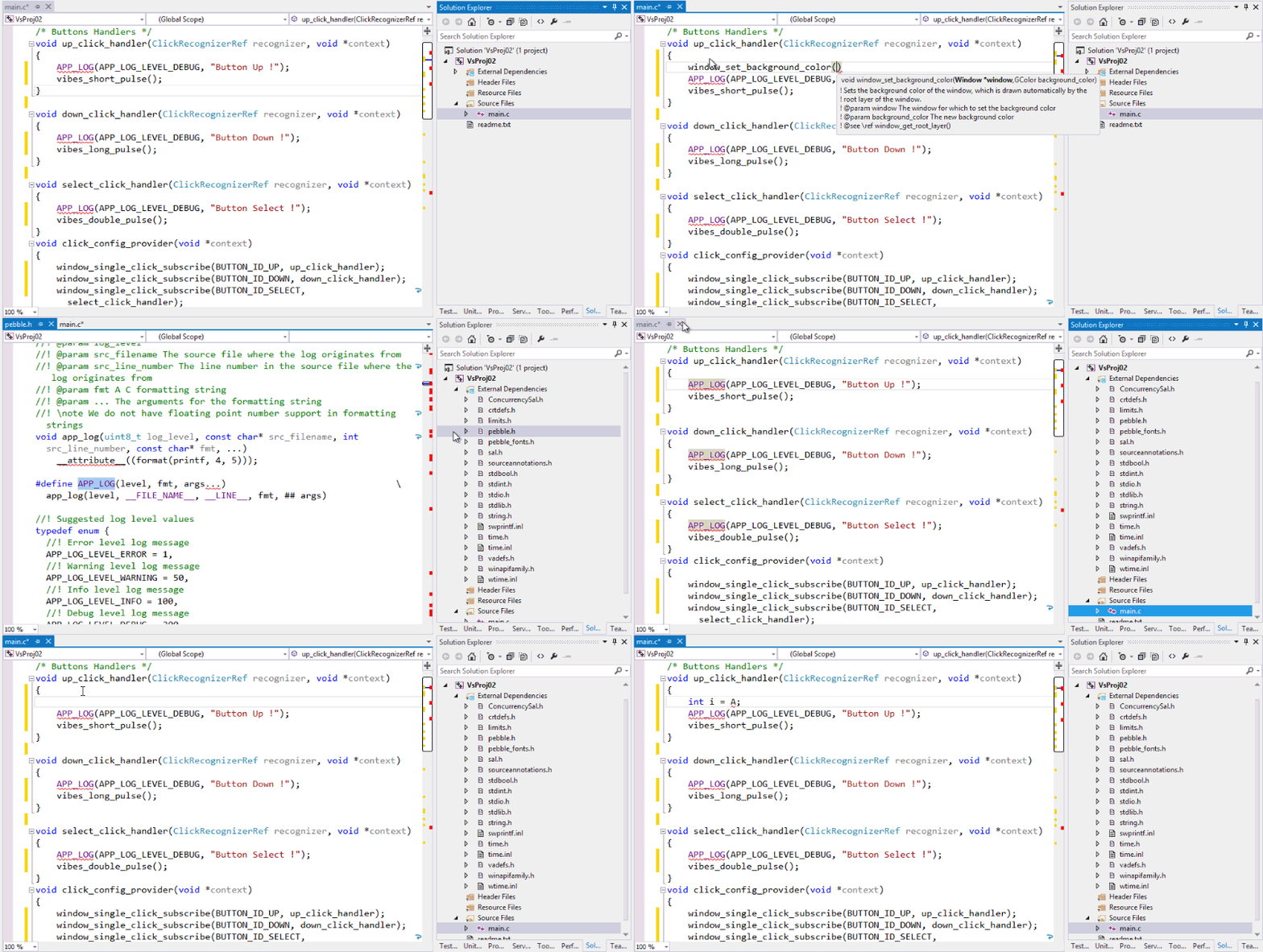
Now I can only find a quick way to publish these changes to the Pebble. I see I have 2 options.
1 find a way to publish these changes from VS to CloudPebble, and take advantage of all the power of CloudPebble.In this case I have to find some plugin’s chrome that make “copy & paste” from the code from Visual Studio and any macro or the IDE for this extension.
2. this option is the most complicated but the most elegant. The Pebble compiler is written in Python, now that we have the Python version 2.1 for Visual Studio, I would find a way to create binary PCB and see how to publish it to the Pebble.

Happy coding!
Download Pebble Linux SDK, https://developer.getpebble.com/2/getting-started/linux/
Saludos @ Home
El Bruno
 |
 |
 |
 El Bruno
Leave a comment